Video Library
Share important videos with app users on relevant topics. Cut and paste in video links from YouTube or Vimeo to instantly populate this module, allowing users to watch content in-app. Videos can be categorized within the module for easy browsing.
Note: Videos are not stored on users’ devices.
Adding a Video
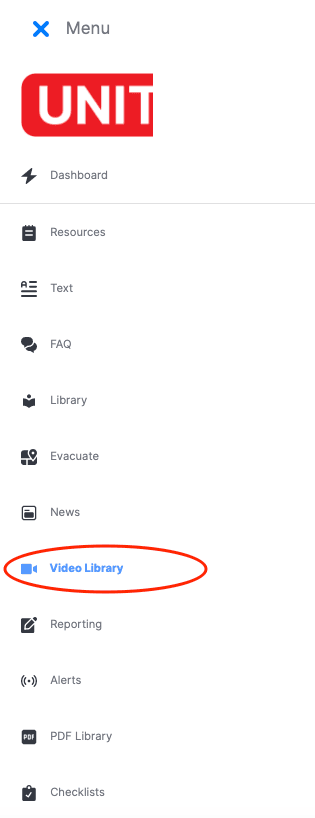
- Select VIDEO LIBRARY from the menu on the left.
- Select the CREATE button in the top-right corner to create a new video category.

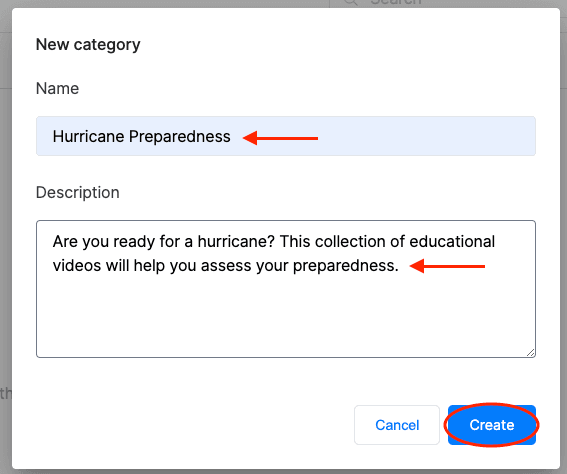
- In the pop-up window, provide the category name and description in the appropriate boxes, and press the CREATE button.
- In the Categories menu, double-click the video category to which you want to add a new video link.

- Within the specific category’s menu, click CREATE in the top-right corner to add a new video to this category.

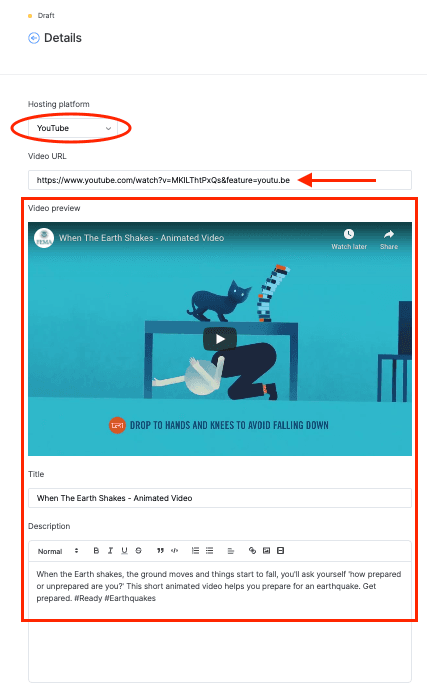
- On the Details page, select the type of video from the drop-down list (YouTube or Vimeo), and paste the video URL into the appropriate box. The VIDEO PREVIEW and TITLE/DESCRIPTION boxes will be automatically filled in (if the information is available on the video hosting platform).
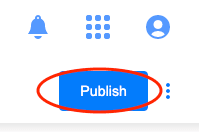
- Click PUBLISH in the top-right corner.
Note: To discard your video entry and return to the previous menu, select the THREE DOTS in the top-right corner and click DISCARD CHANGES.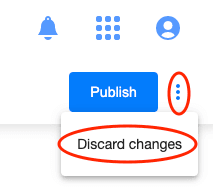
And you’re done!
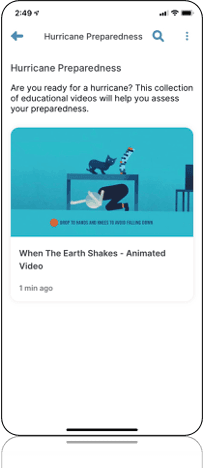
Your video has been published and is accessible to app users. It will instantly appear in the VIDEO LIBRARY module of your app like so:
Editing or Deleting a Video
In the video menu (within the video category), select the video you want to edit or delete.

To EDIT a video:
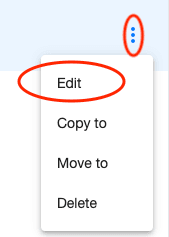
- Select the THREE DOTS at the far right of the row and select EDIT from the drop-down list.
- Follow STEPS 4-7 in the Adding a Video section above.
To DELETE a video:
- Select the THREE DOTS at the far right of the row and choose DELETE from the drop-down list.
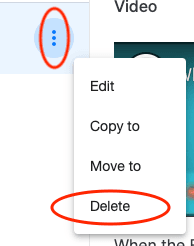
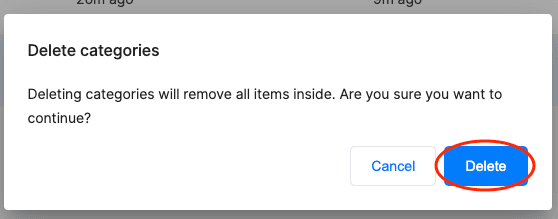
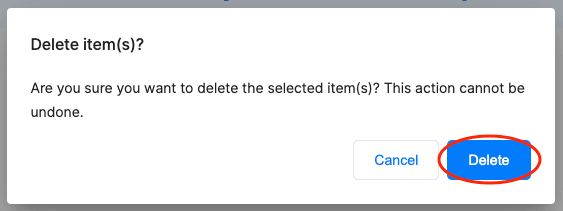
- Click DELETE in the pop-up window to confirm your selection.
Copying or Moving a Video
In the video menu (within the video category), select the video you want to copy or move.
To COPY a video:
Note: Copying a video will duplicate the video within another category. It will not remove the video from its original category.
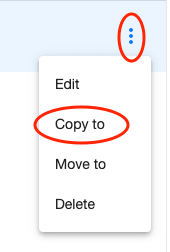
- Select the THREE DOTS at the far right of the row and choose COPY TO from the drop-down list.
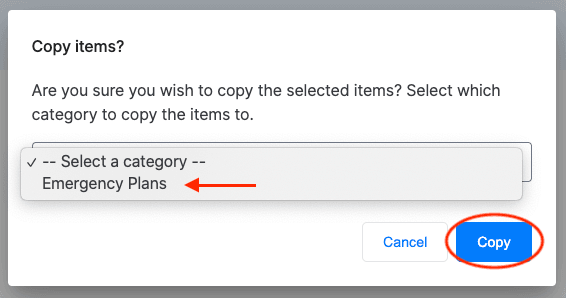
- In the pop-up window, select the existing category to which you will copy the video, and click COPY to confirm your selection.
To MOVE a video:
Note: Moving a video will relocate it to another category. The video will be removed from its original category.
- Select the THREE DOTS at the far right of the row and select MOVE TO from the drop-down list.
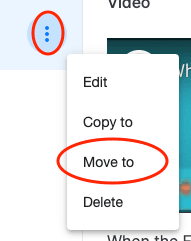
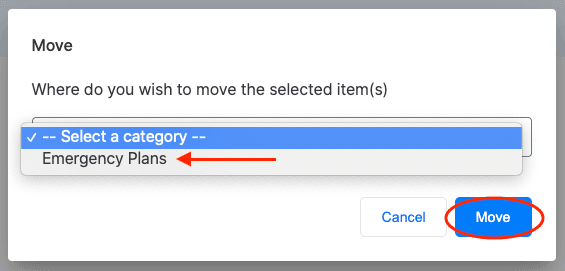
- In the pop-up window, select the existing category to which you will move the video, and click MOVE.
Editing or Deleting a Video Category
In the Categories menu, select the video category you want to edit or delete.

To EDIT a video category:
Note: Editing video category information will not affect the videos saved within that category.
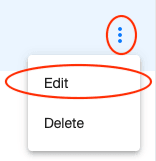
- Select the THREE DOTS at the far right of the row and choose EDIT from the drop-down list.
- Follow STEP 3 in the Adding a Video section above.
To DELETE a video category:
Note: Deleting a video category will also delete the videos saved within that category.
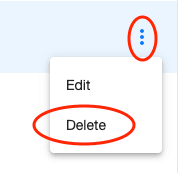
- Select the THREE DOTS at the far right of the row and choose DELETE from the drop-down list.
- Click DELETE in the pop-up window to confirm your selection.