12 Steps of Onboarding
Getting Started
To get started creating an app, we need the name and email address of the person who will be the administrator. This person may or may not be your contact for the order. More people can be added as administrators later in the onboarding process and at any point during the life of the app. An organization and app will then be set up in the QuickSeries portal. The administrator will be invited to the portal, and they will receive an email from noreply@quickseries.com inviting them to click on a link and create a password. At this point, an email will be sent to the administrator to ensure they received the email and have been able to proceed with the first steps.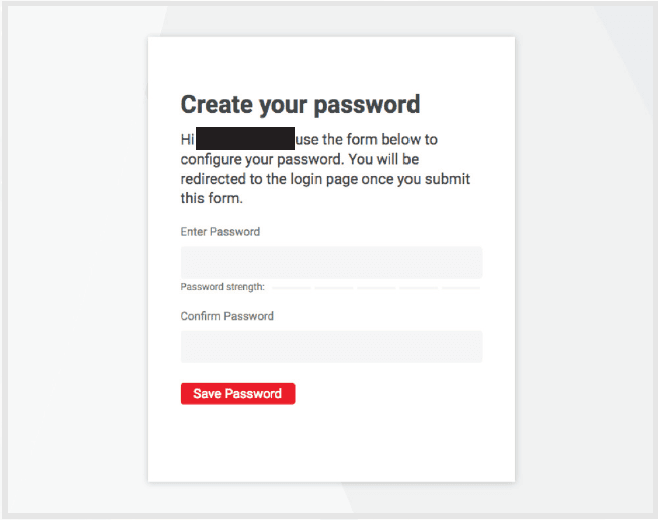
STEP 1: Provide your app name and graphic assets.
Once the administrator has created their password, they are redirected to their portal where they can see only the first step in the onboarding process.
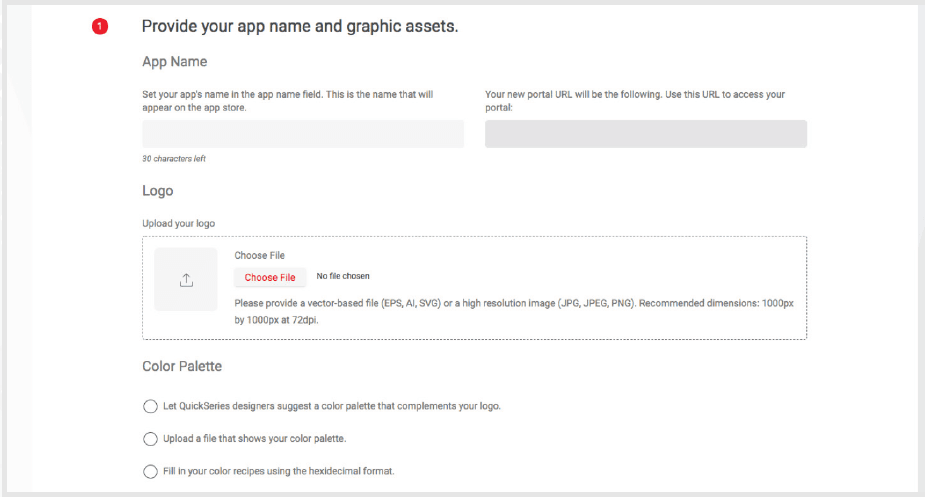
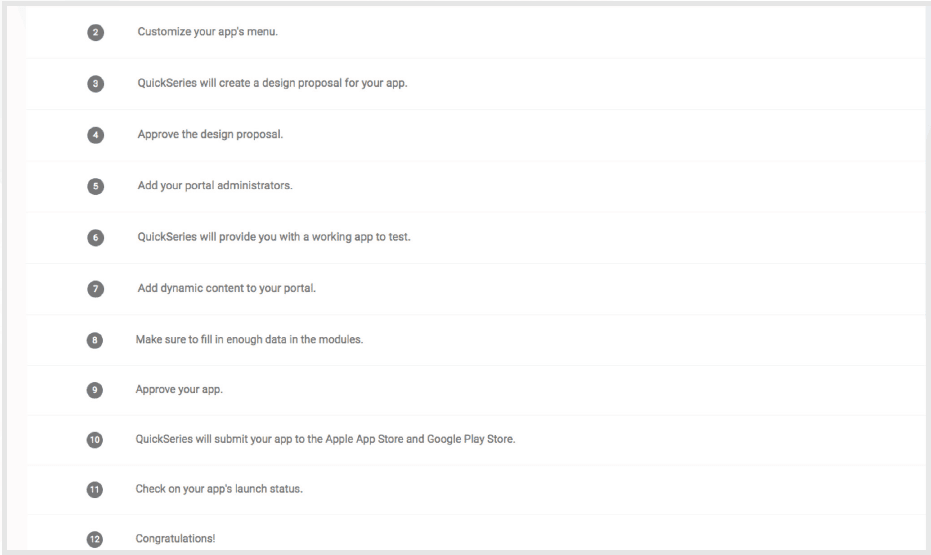
The list of next steps is visible but not accessible.
The administrator sets the app name, uploads the organization’s logo and chooses an option for the color palette.
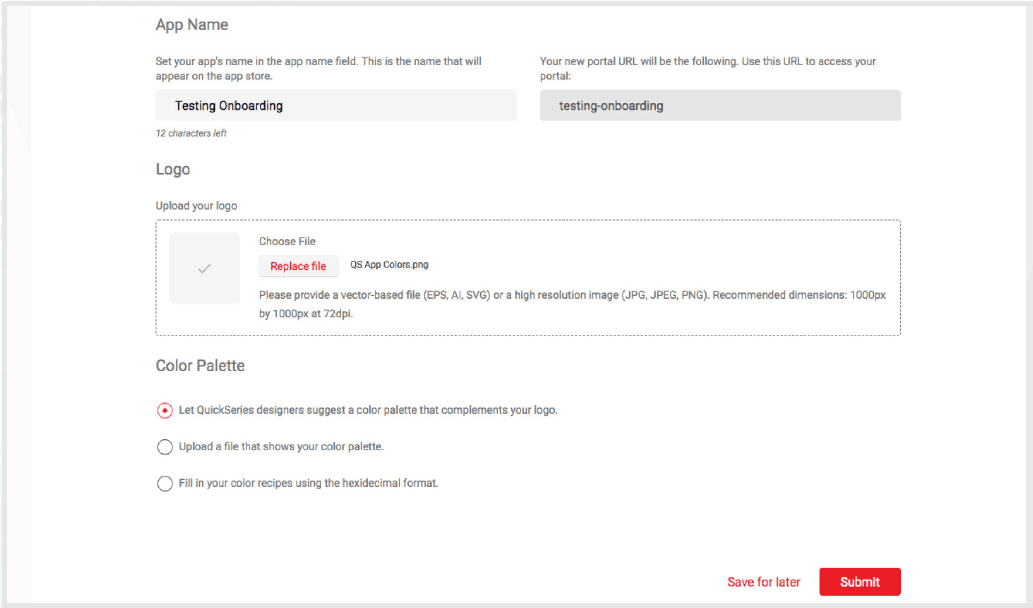
After the administrator clicks Submit, three things happen:
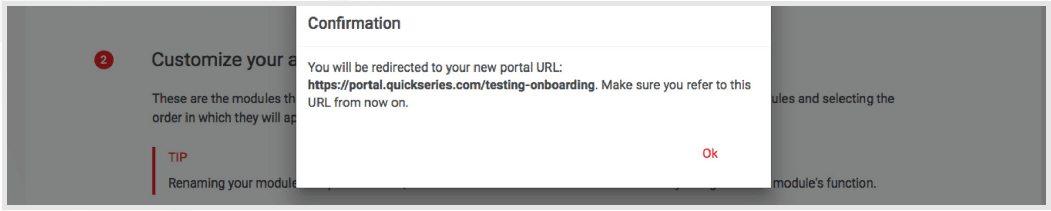
- The client is redirected to the new portal URL (using the specified app name)
- The client receives an email notification of the change
- We will be notified by email that the step is complete
STEP 2: Customize your app’s menu.
The administrator can rename and re-order the modules that appear in the app menu.
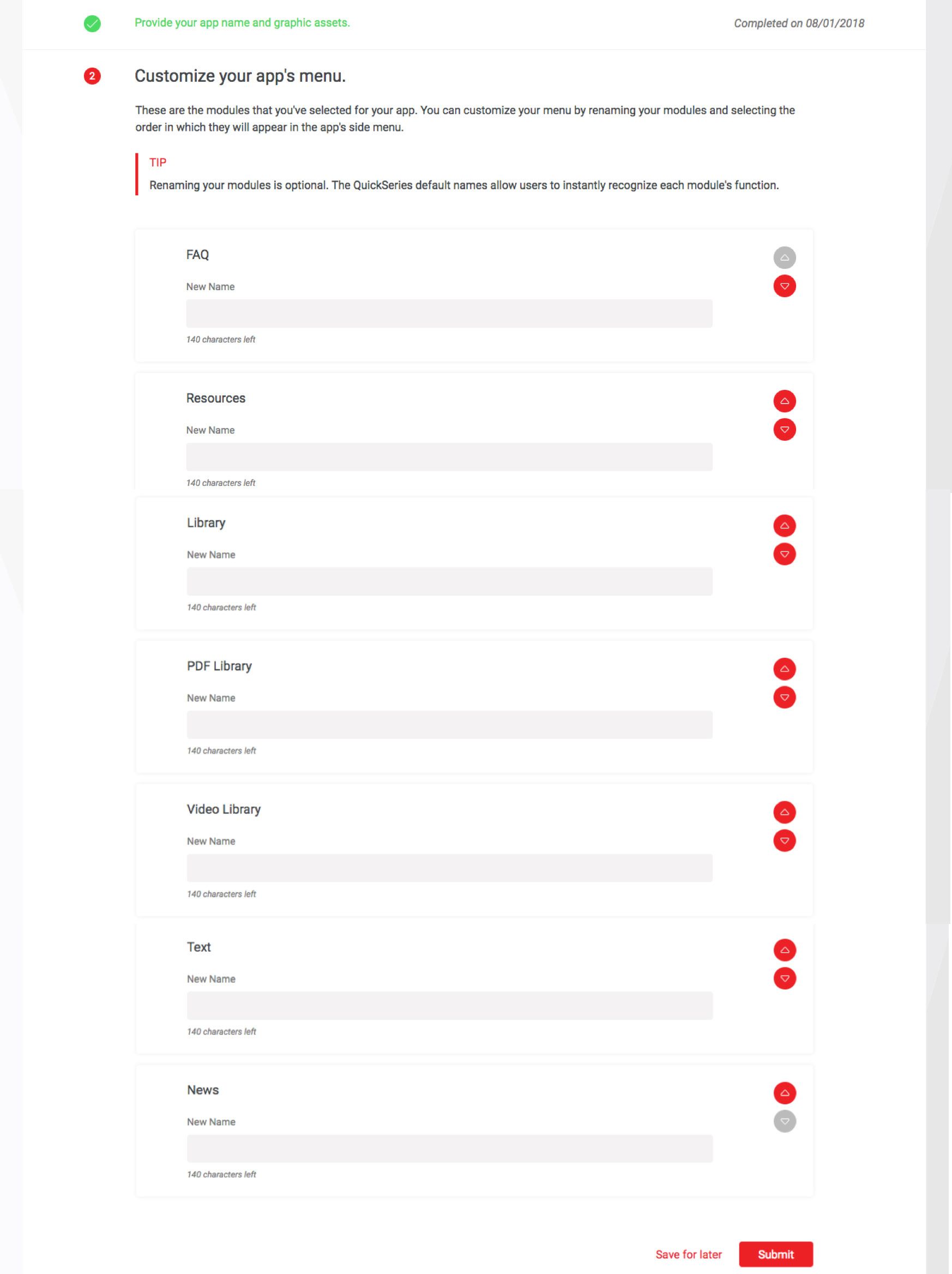
Once the administrator clicks Submit, we will be notified that the step is complete and it’s time to create the design proposal.
STEP 3: QuickSeries will create a design proposal for your app.
The administrator has nothing more to do until they receive notification that the design proposal is ready.
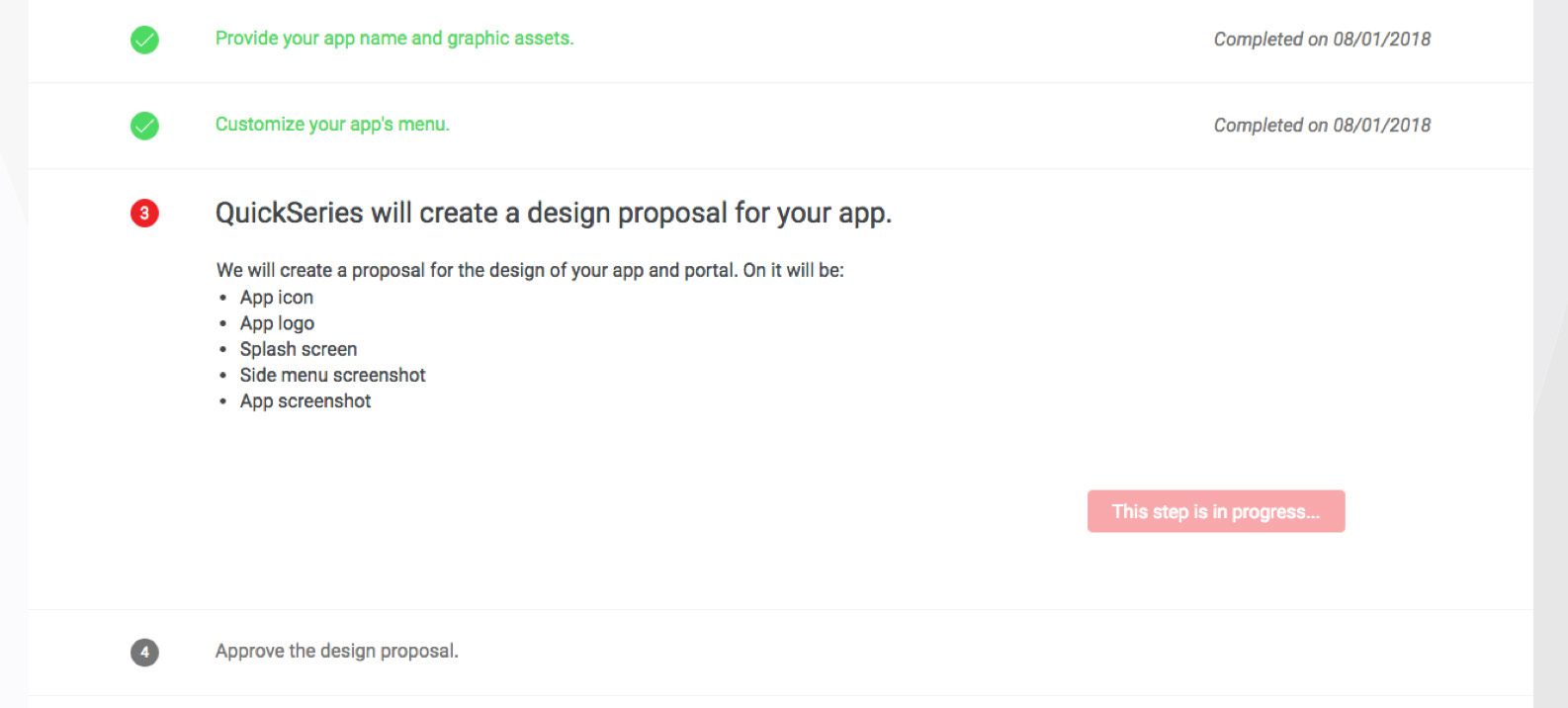
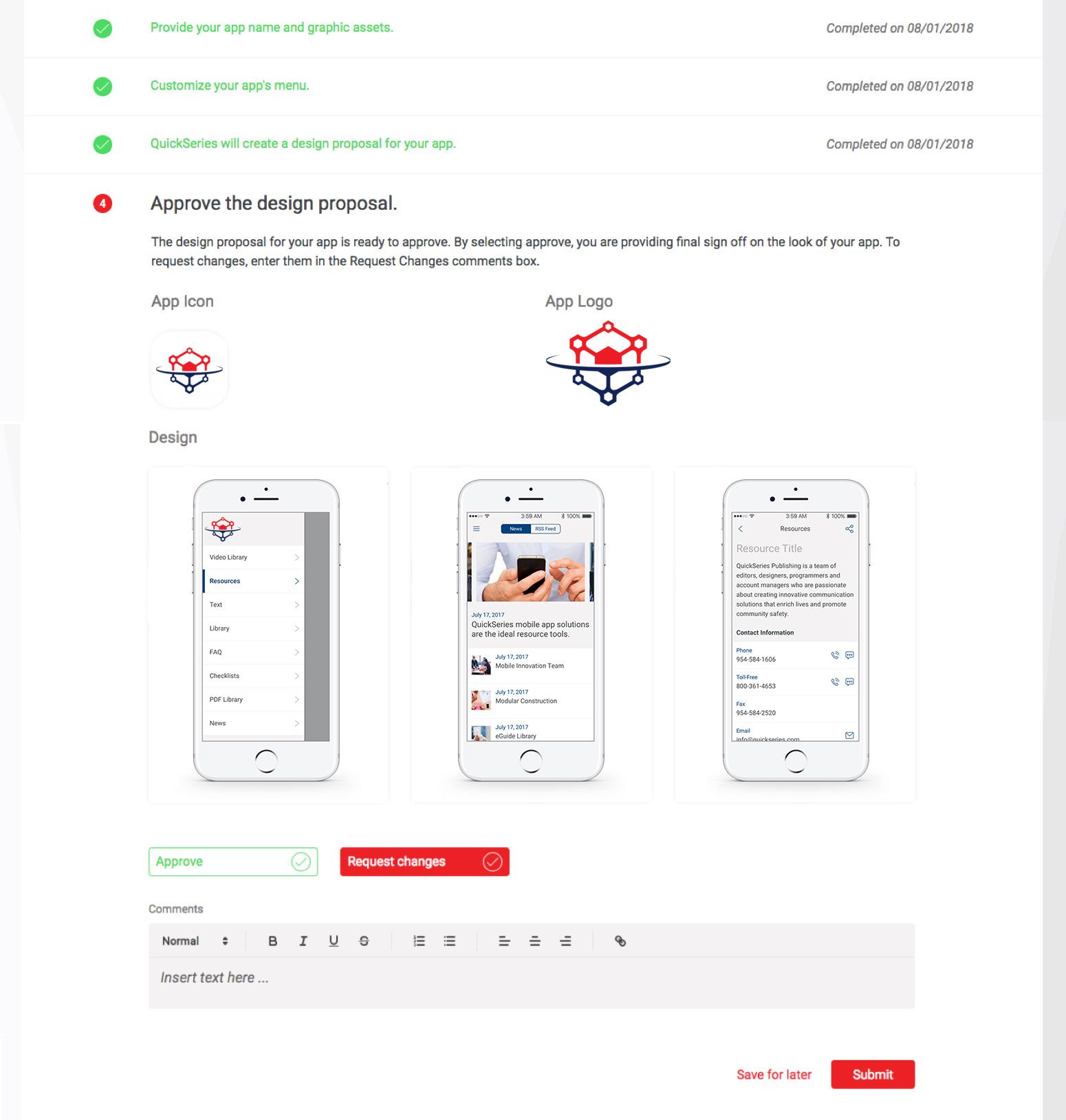
STEP 4: Approve the design proposal.
When the design proposal is ready, the administrator will receive an email notifying them to log in to their portal to see the design proposal.
The administrator may approve the design proposal or request changes. If they request changes, we will be notified to create a new proposal. This can go back and forth until the client is satisfied.
If the process stalls, we will reach out to the administrator.
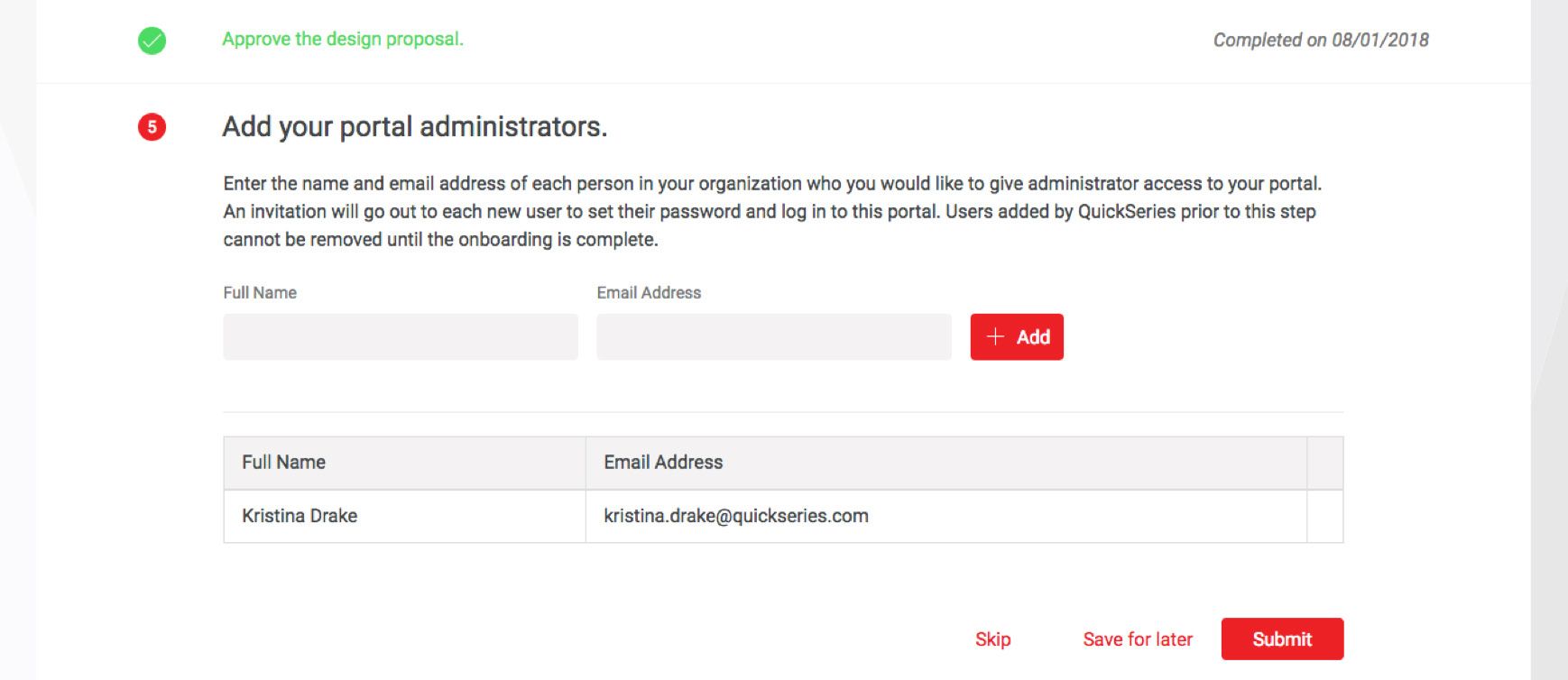
STEP 5: Add your portal administrators.
Once the design proposal is approved, the administrator may add other portal administrators. They, too, will receive emails inviting them to create a password to access the portal.
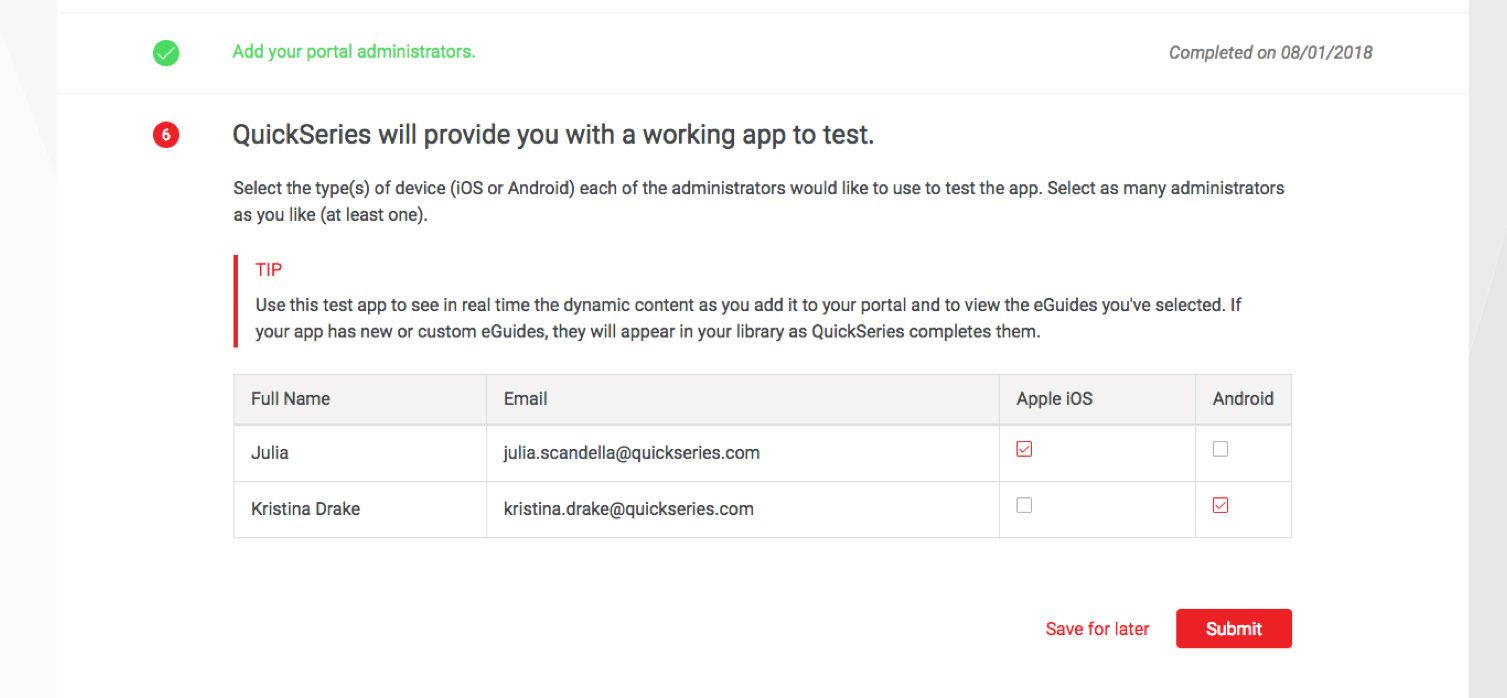
STEP 6: QuickSeries will provide you with a working app to test.
The administrator specifies who should receive a test app and for which devices.
The administrator and testers will receive an email invitation from Firebase and/or TestFlight.
We will then contact the administrators and testers by email to supply the installation instructions and to confirm they have received the invitation and have successfully installed the test apps.
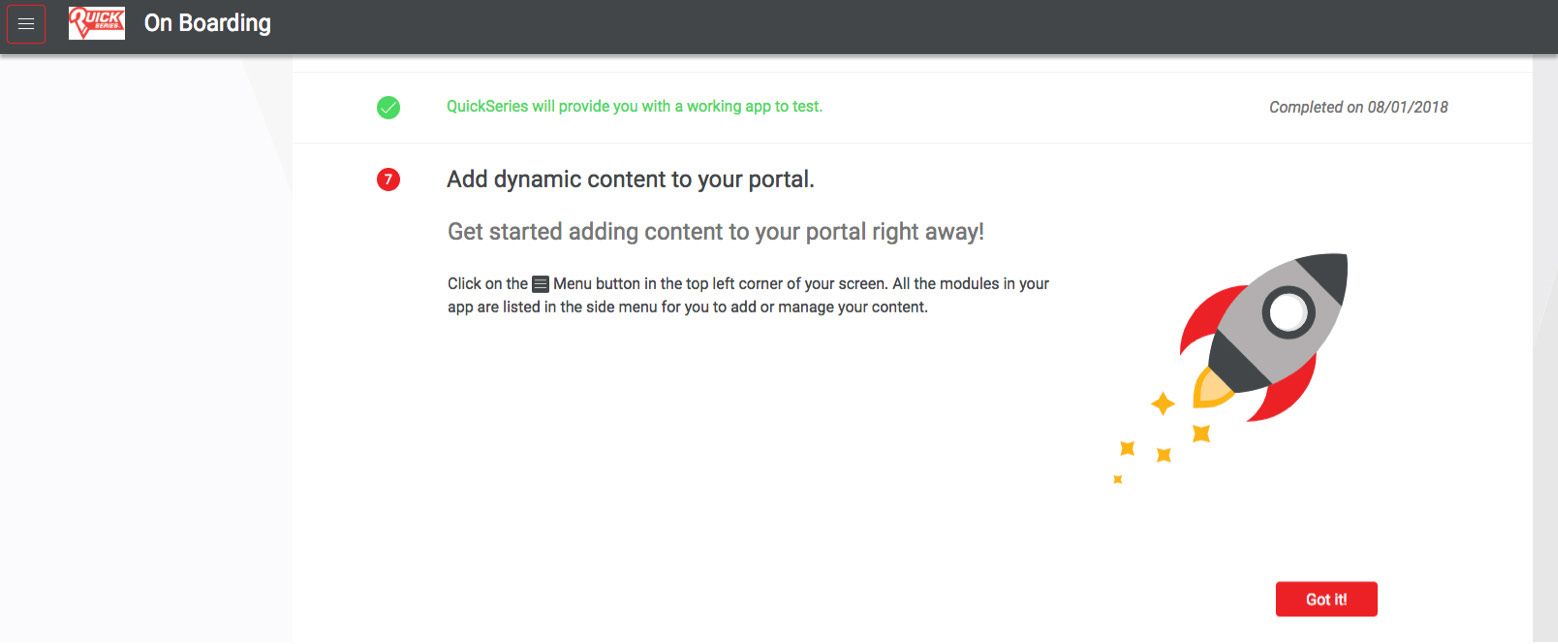
STEP 7: Add dynamic content to your portal.
The menu bar appears, and the client can now access the app modules.
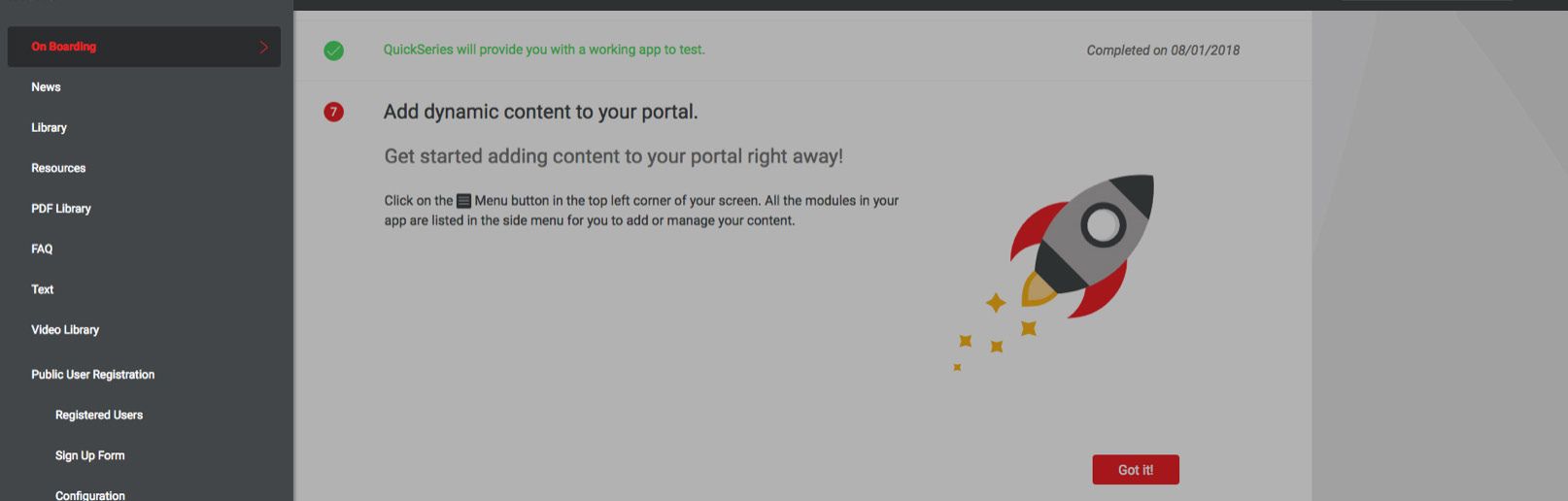
STEP 8: Make sure to fill in enough data in the modules.
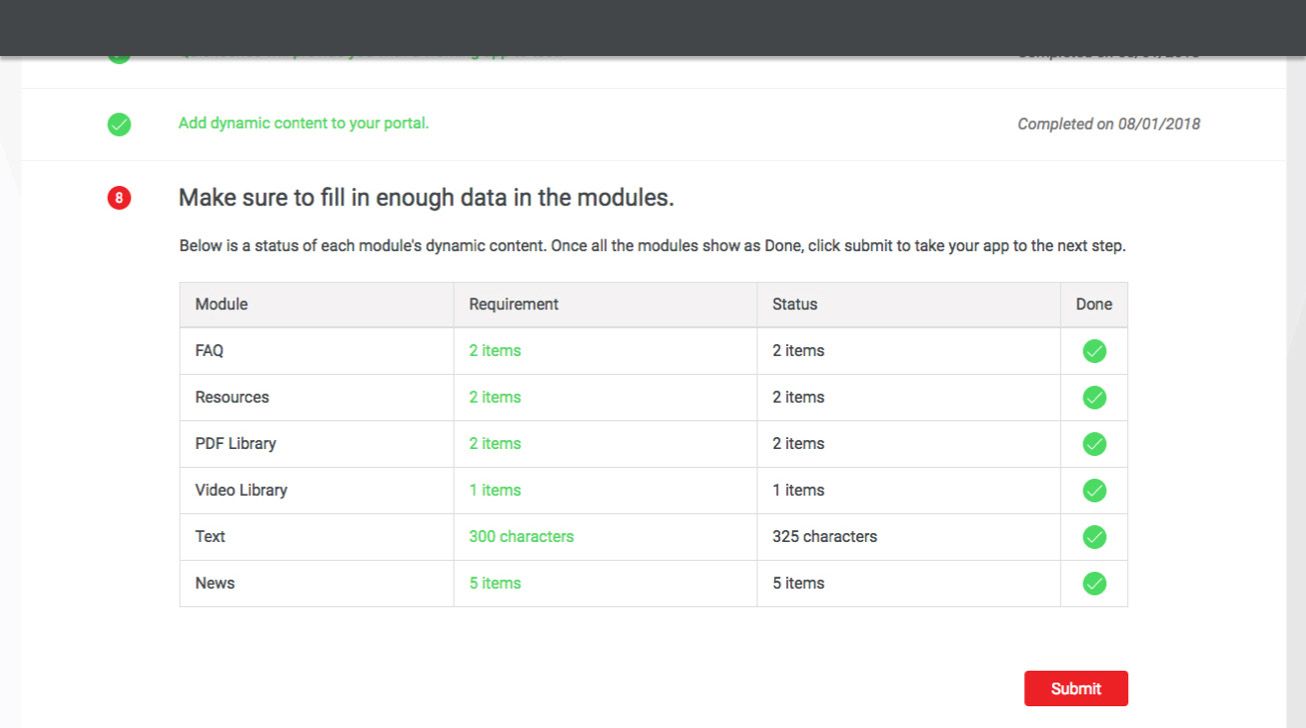
A certain amount of content is required for apps to be approved for release on the app stores.
The administrator can see the minimums and their progress as they add content to their modules.
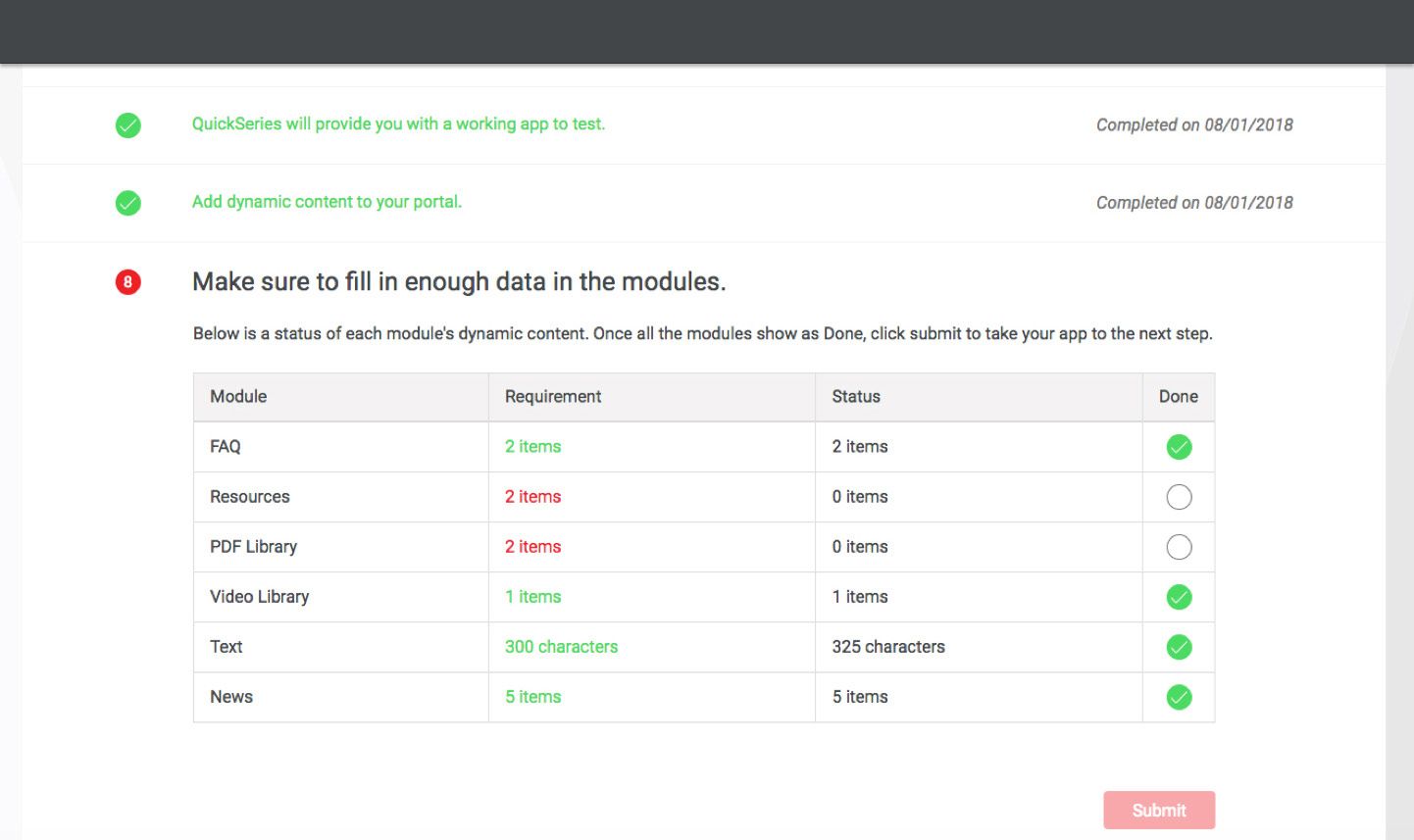
Once all the minimum content has been added, the Submit button becomes active and the administrator can move to the next step.
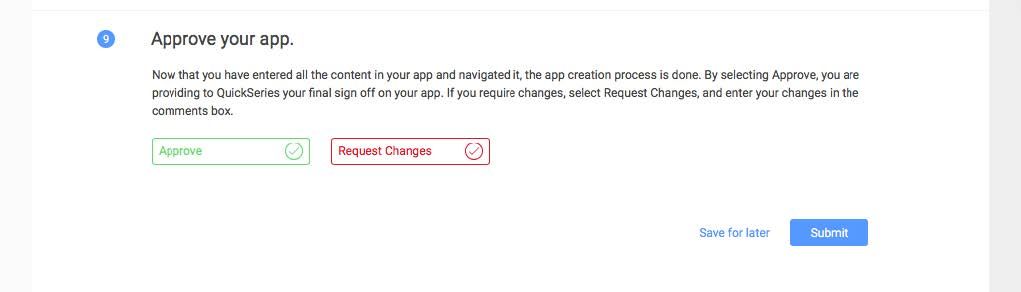
STEP 9: Approve your app.
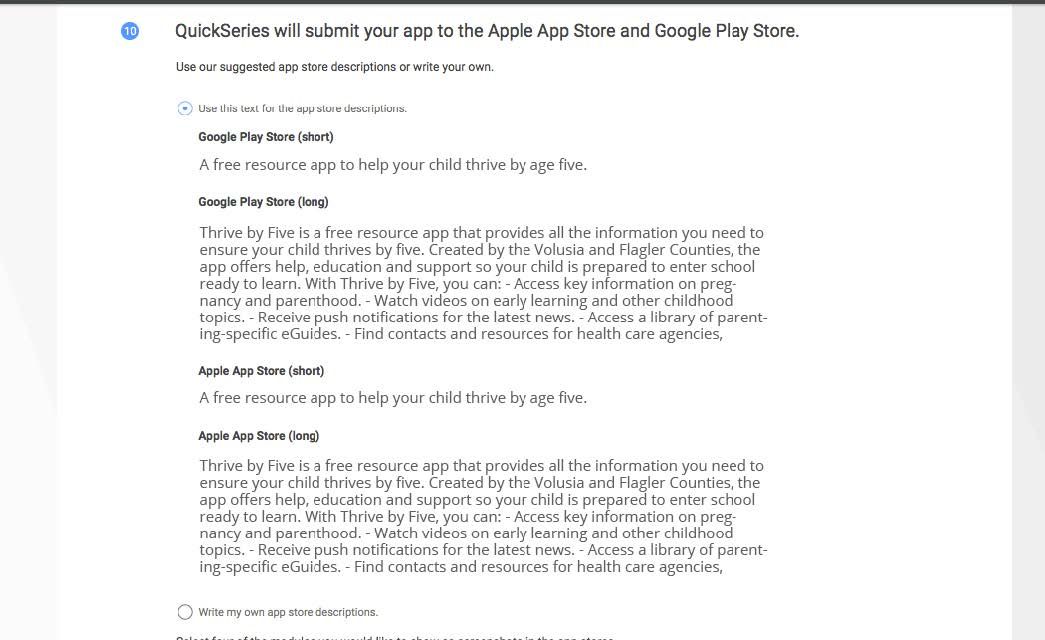
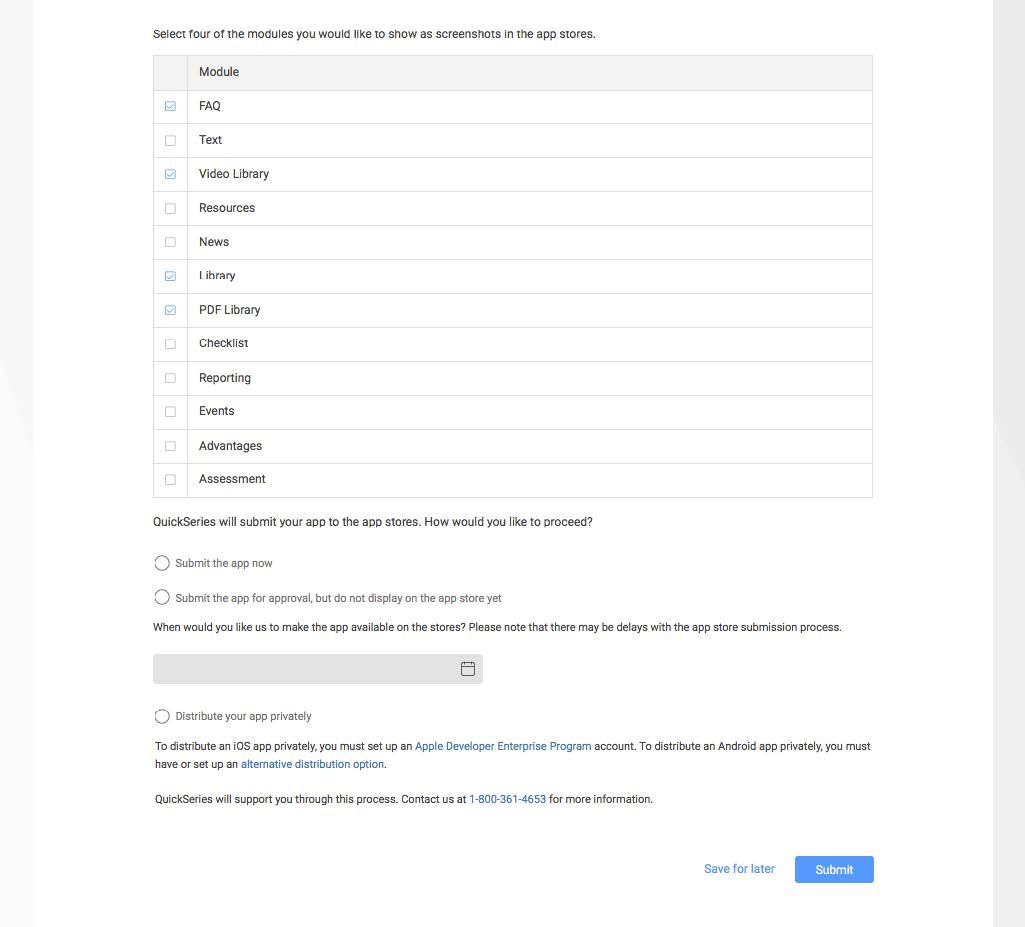
STEP 10: QuickSeries will submit your app to the Apple App Store and Google Play Store.
Once the administrator approves the app, they can confirm or edit the app store listing and specify when they wish the app to be released.
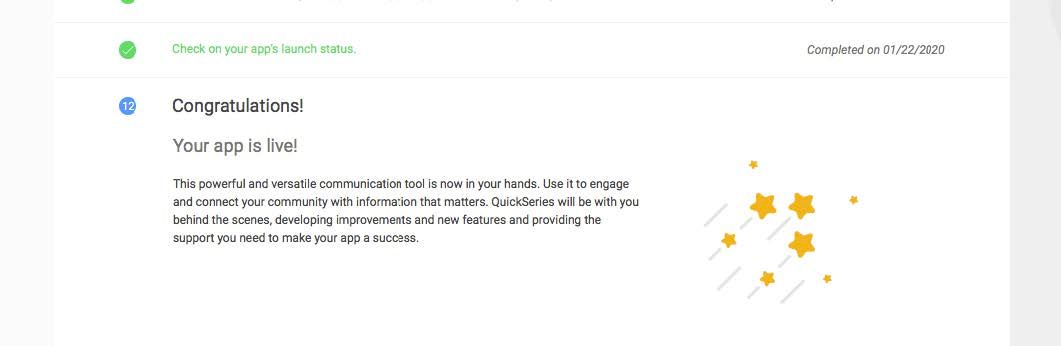
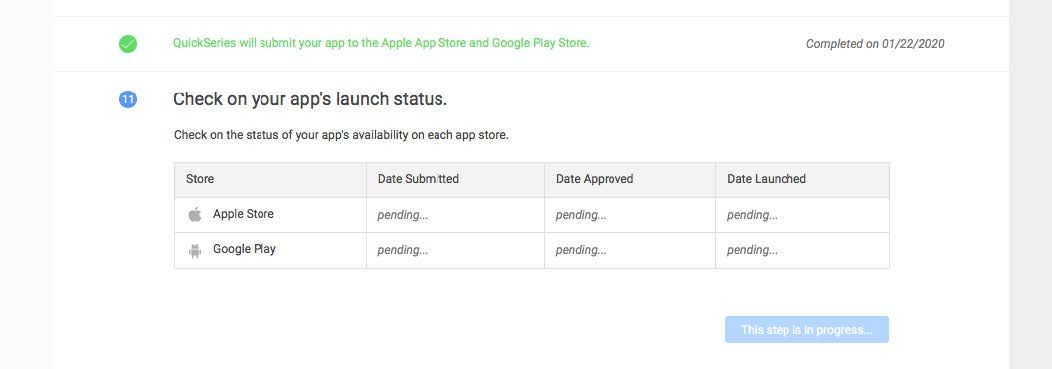
STEP 11: Check on your app’s launch status.
The administrator will also be able to view the app’s launch status.
STEP 12: Congratulations! Your app is live!