Assessments
Engage app users through the use of dynamic assessments and quizzes on any relevant topic. Users answer a series of multiple choice or true/false questions to receive a score, rating, result or tailored content. When the app user completes an assessment or quiz, their results are sent to the app administrator(s).
Creating a New Assessment
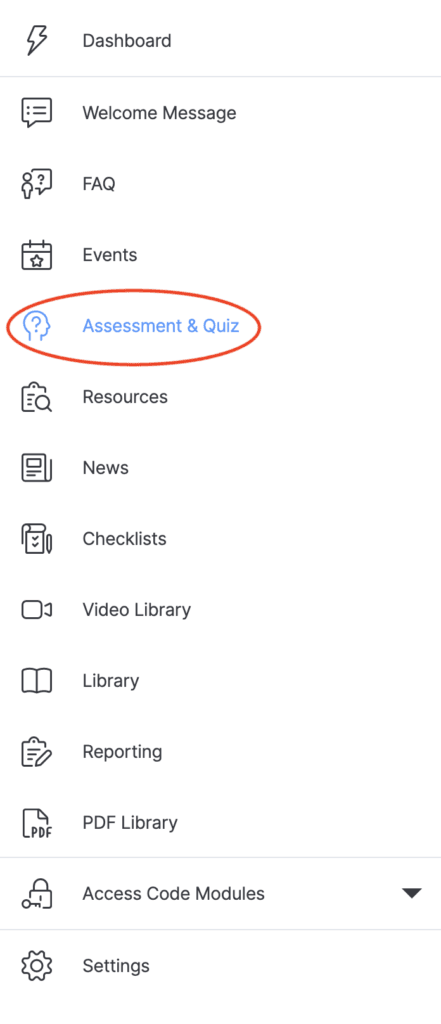
- Select ASSESSMENTS & QUIZES from the menu on the left.
- Click CREATE in the top-right corner to create a new assessment.

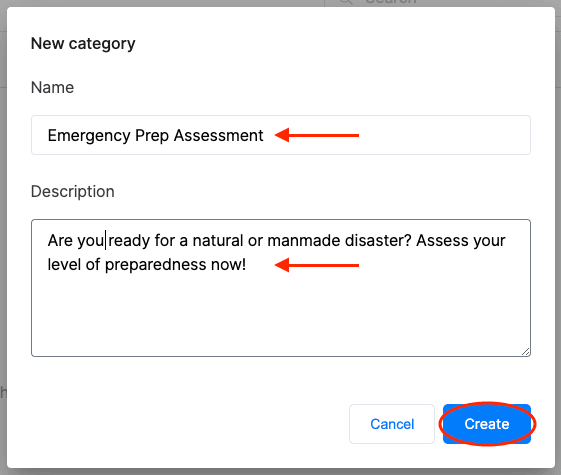
- In the NEW CATEGORY window, insert the assessment’s title and a brief description. Then, click CREATE.
- Double-click the new assessment category in the main Assessment menu.

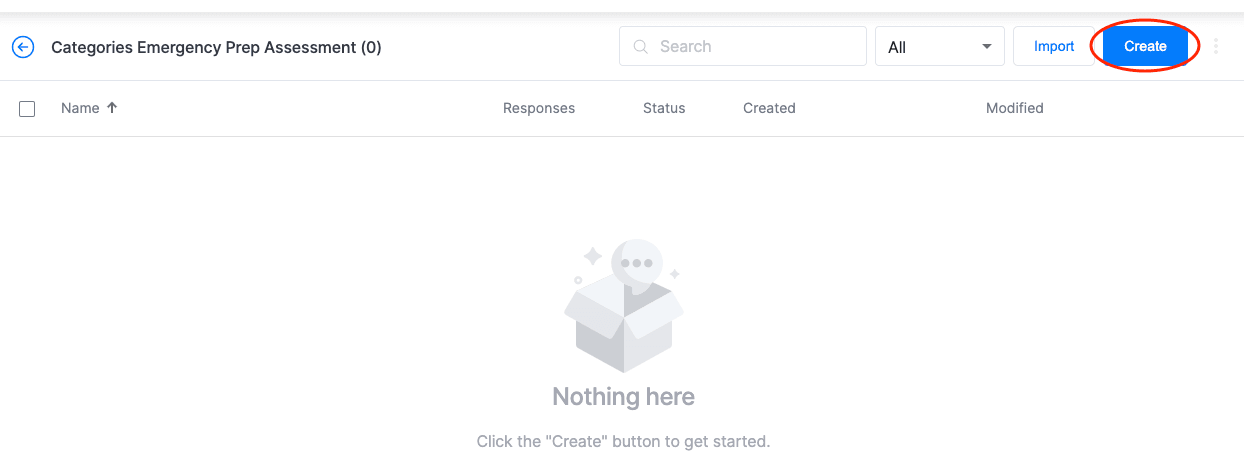
- Select CREATE in the top-right corner of the new page. (Or, click IMPORT to upload your own .qassessment file.)
- Select the type of assessment you want to create: QUIZ/TEST or SCORED ASSESSMENT.
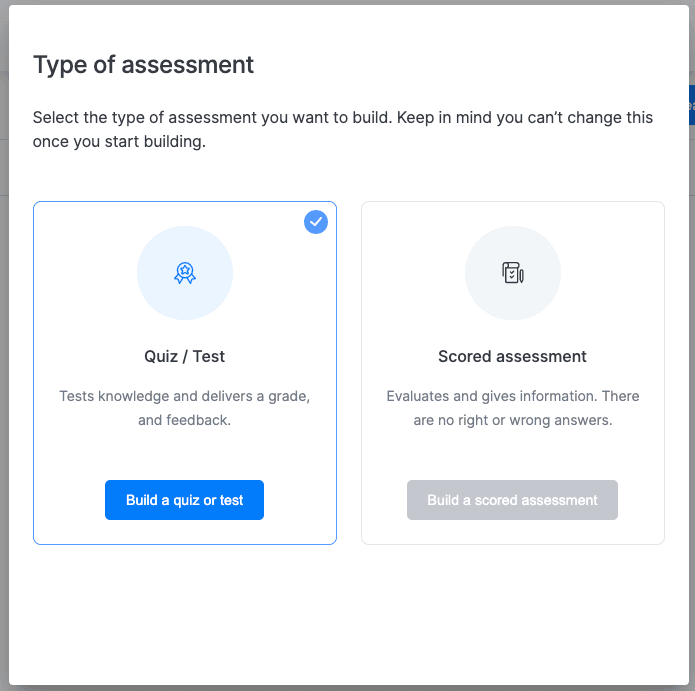
Scored Assessment: Evaluates a user’s status (e.g., readiness, risk) in a specific situation
Quiz/Test: Tests a user’s knowledge on a specific topic and delivers an overall result based on their answers
Creating a Quiz/Test
- On the Details page, add a photo, title and description in the INFORMATION tab.
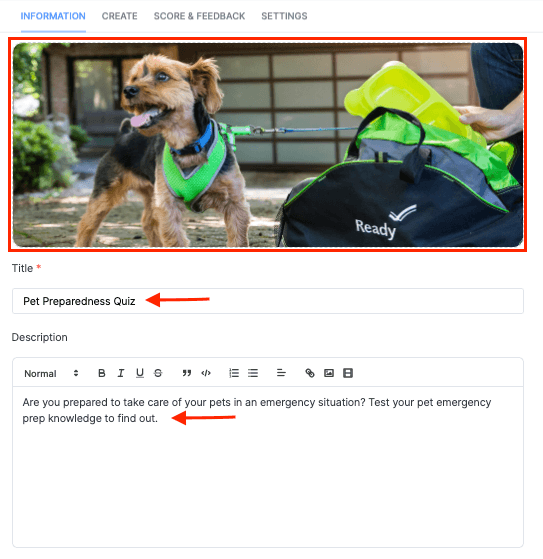
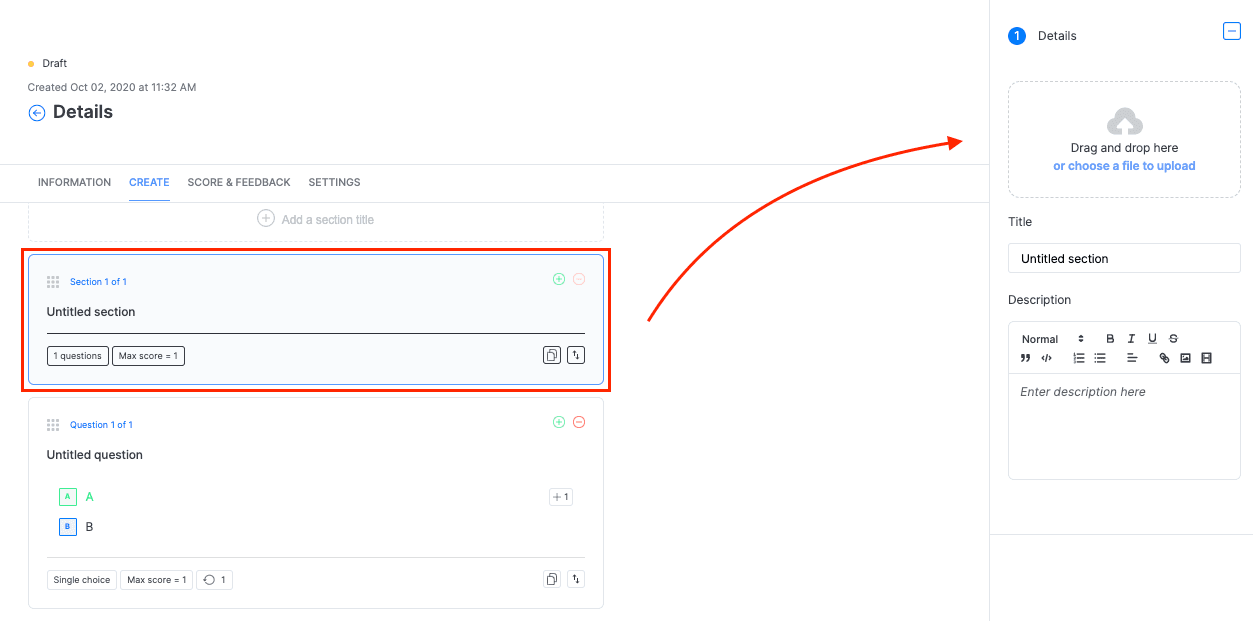
Note: Insert an image by dragging and dropping the image file into the photo box. Accepted files are PNG, JPG or GIF. A high-resolution image that is at least 700 px wide and has a 4:3 ratio is recommended. - Click on the CREATE tab. Then, select the SECTION box to start building your assessment. Use the panel on the right to add an image and text.
- Select the QUESTION box to add your first question. Use the panel on the right to create your question using the various options.
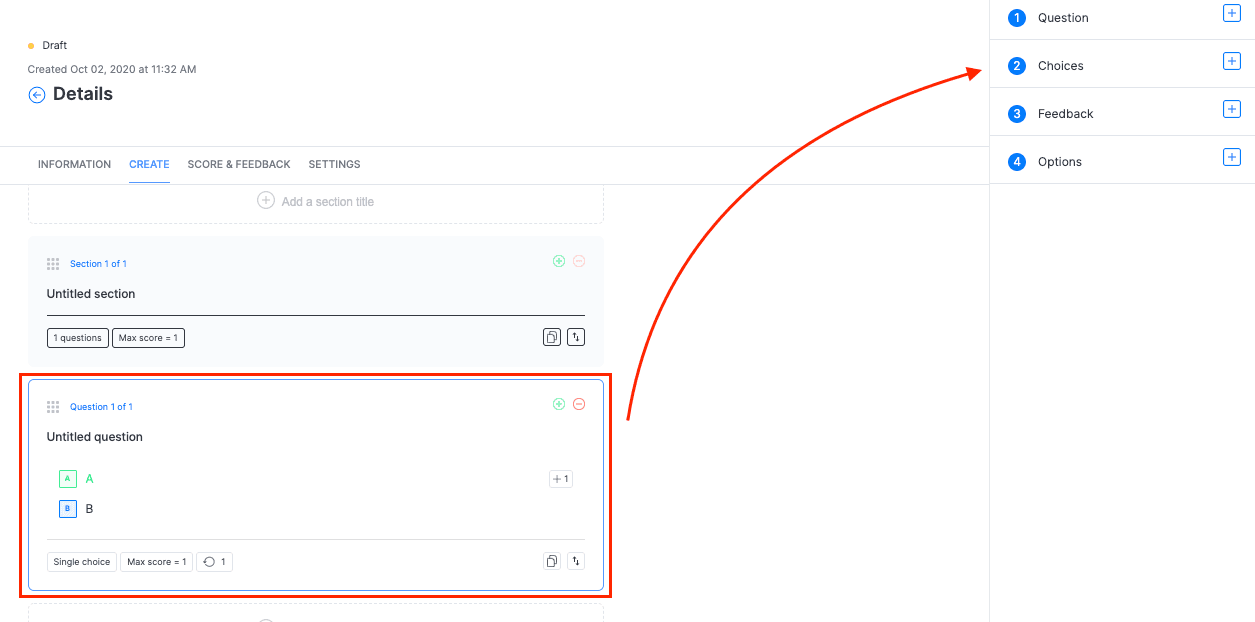
- Select QUESTION in the panel on the left to add your question. Choose the answer TYPE from the drop-down list.
SINGLE CHOICE: User can only select one answer.
MULTIPLE CHOICE: User can select more than one answer.
Note: Use the NOTE section to add other information, hints, tips or comments.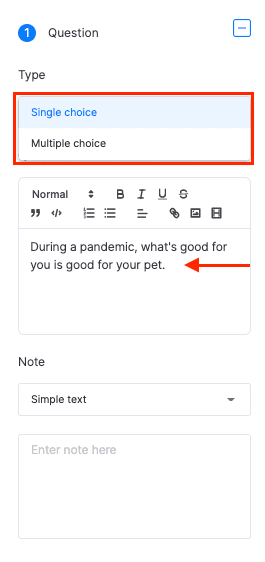
Tip: Use the tools on top of the question text box to format your text. - Select CHOICES in the panel on the right to add the possible answers to the question. Select the right answer by clicking on the CORRECT/INCORRECT box under the text field. The CORRECT button will turn green.
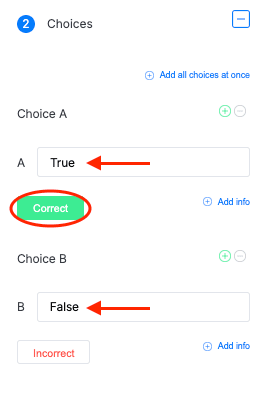
- Click on the PLUS (+)/MINUS (-) signs next to the choice to add another choice underneath it, and use the ADD INFO option to include any notes or information, if necessary.
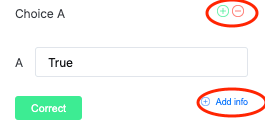
Note: The ADD ALL CHOICES AT ONCE option at the top allows you to add all the answer choices for this question as a group. Type in your answers in the popup window and press ADD CHOICES.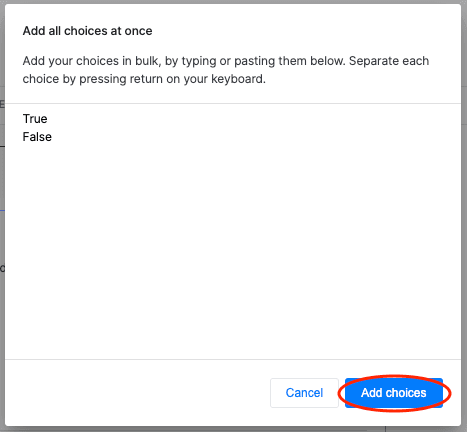
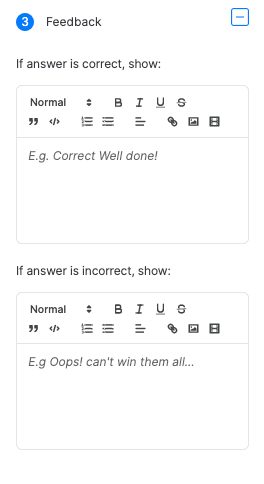
- In the FEEDBACK section, include a comment you would like the user to receive for their selected answer. Leave the text boxes blank if you don’t want them to receive a comment.
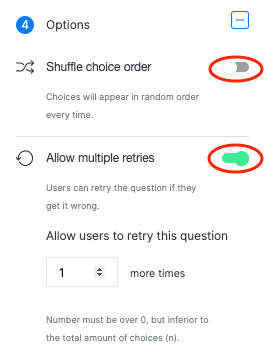
- In the OPTIONS section, slide the buttons to the right if you would like to activate the SHUFFLE CHOICE ORDER and ALLOW MULTIPLE RETRIES options.
- Select QUESTION in the panel on the left to add your question. Choose the answer TYPE from the drop-down list.
- Click the SCORE & FEEDBACK tab to assign a score and comments to the user based on their results. Select ADD A BREAKDOWN and include commentary/instructions/feedback for each possible final score.
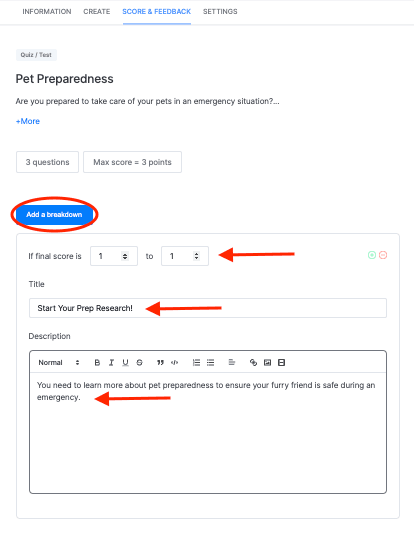
Click on the PLUS (+) sign on the right of the final score to add another score/description combo underneath it.
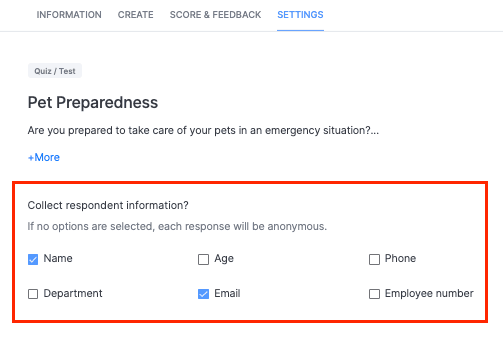
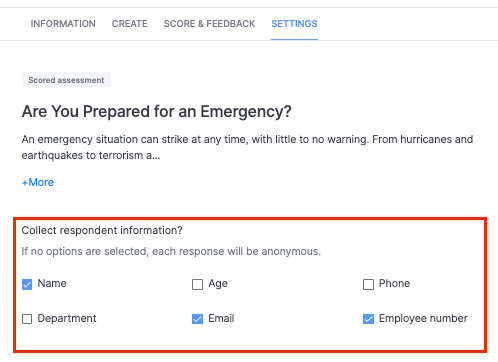
- In the SETTINGS tab, check the boxes on the information you would like to collect for each quiz participant. If you do not check any boxes, all responses will be anonymous.
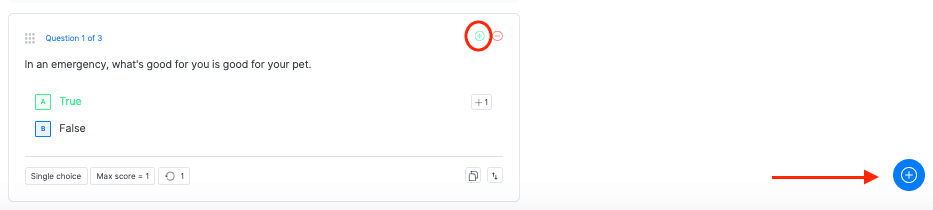
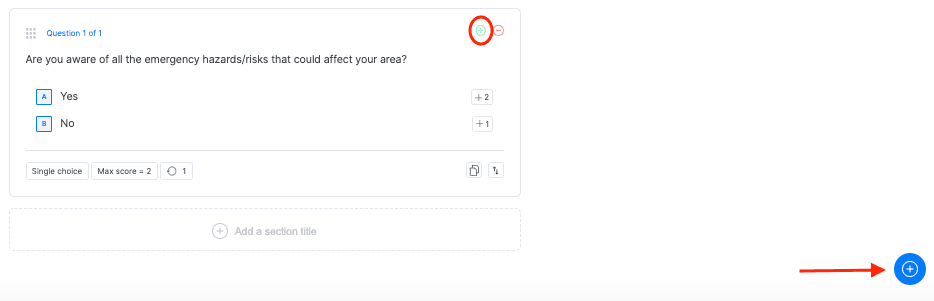
- To add another question, go back to the CREATE tab and select the green PLUS (+) sign in the right-hand corner of the last Question box OR click on the blue PLUS (+) sign in the bottom right-hand corner. (Select the red MINUS (-) sign to delete the current question.)
- Follow STEPS 2-6 above for every new question added.
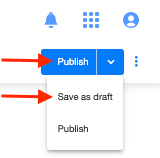
- Once done, click PUBLISH (or SAVE AS DRAFT to save it without publishing).
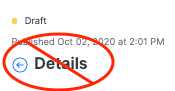
 DO NOT HIT THE DETAILS BACK ARROW ON THE LEFT WITHOUT SAVING OR PUBLISHING FIRST – YOU WILL LOSE ALL YOUR CONTENT.
And you’re done!
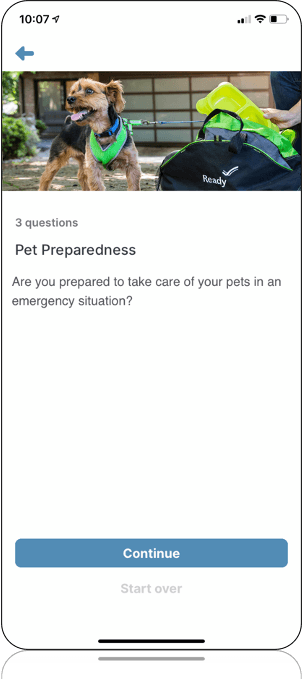
Your new quiz/test has been published and is accessible to app users. It will instantly appear in the ASSESSMENTS module of your app like so:
Creating a Scored Assessment
- On the Details page, add a photo, title and description in the INFORMATION tab.
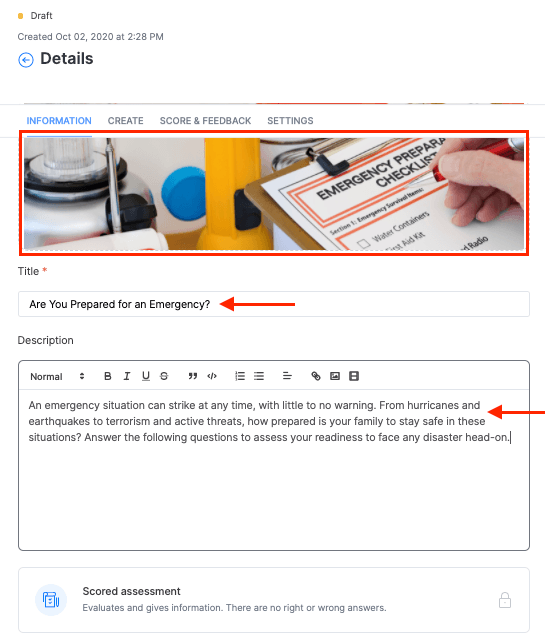
Note: Insert an image by dragging and dropping the image file into the photo box. Accepted files are PNG, JPG or GIF. A high-resolution image that is at least 700 px wide with a 4:3 ratio is recommended. - Click on the CREATE tab. Select the SECTION box to start building your assessment. Use the panel on the right to add an image and text.
- Select the QUESTION box to add your first question. Use the panel on the right to create your question using the various options.
- Select QUESTION in the panel on the right to add your question. Choose the answer TYPE from the drop-down list:
SINGLE CHOICE: User can only select one answer.
MULTIPLE CHOICE: User can select more than one answer.
LINEAR SCALE: User chooses answer from a numerical range.
Note: Use the NOTE section to add other information, hints, tips or comments.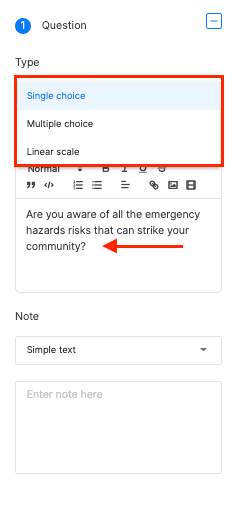
Tip: Use the tools on top of the question text box to format your text. - Select CHOICES in the panel on the right to add the possible answers to the question.
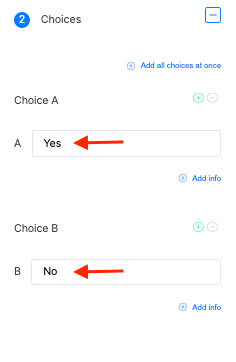
Click on the PLUS (+)/MINUS (-) signs next to the choice to add another choice underneath it, and use the ADD INFO option to include any notes or information, if necessary.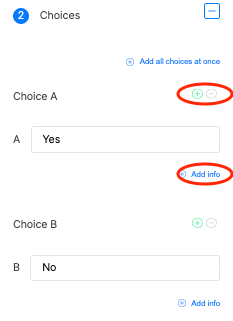
Note: The ADD ALL CHOICES AT ONCE option at the top allows you to add all the answer choices for this question as a group. Type in your answers in the popup window and press ADD CHOICES.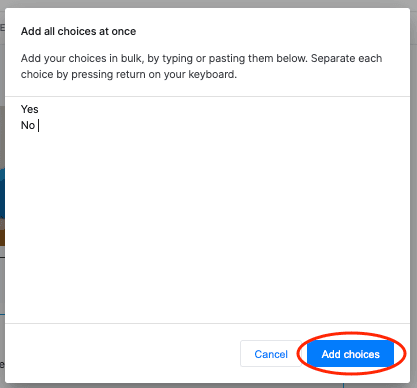
- In the POINTS section, assign points to each answer in the appropriate box.
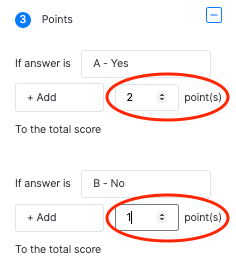
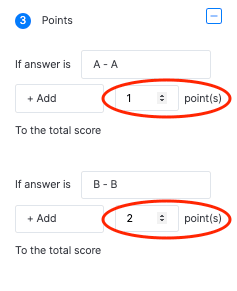
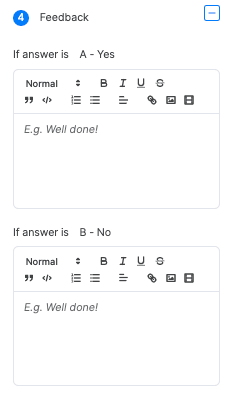
- In the FEEDBACK section, include a comment you would like the user to receive for their selected answer. leave the text boxes blank if you don’t want them to receive a comment.
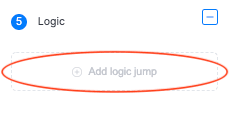
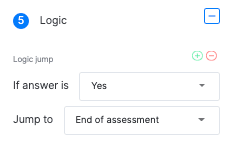
- In the LOGIC section, establish whether you want users sent to a different question or section depending on their answer. Click ADD LOGIC JUMP if this is required, and then select the appropriate information from the drop-down lists.
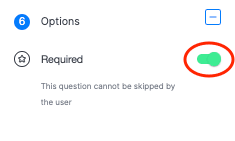
- In the OPTIONS section, slide the REQUIRED button to ON to make this question required.
- Select QUESTION in the panel on the right to add your question. Choose the answer TYPE from the drop-down list:
- Click the SCORE & FEEDBACK tab to assign a score and comments to the user based on their results. Select ADD A BREAKDOWN and include commentary/instructions/feedback for each possible final score.
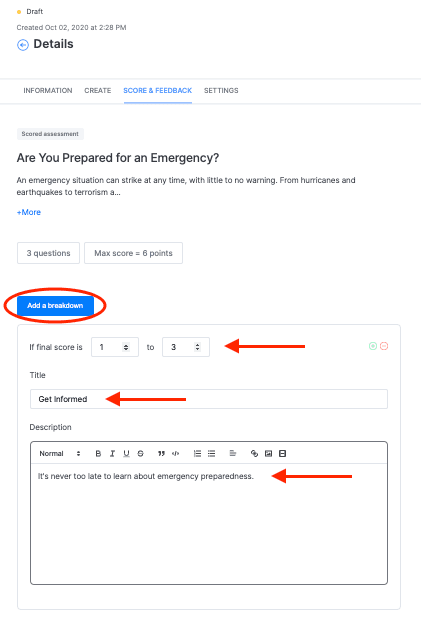
Click on the green PLUS (+) sign on the right of the final score to add another score/description combo underneath it. - In the SETTINGS tab, check the boxes on the information you would like to collect for each quiz participant. If you do not check any boxes, all responses will be anonymous.
- To add another question, go back to the CREATE tab and select the green PLUS (+) sign in the right-hand corner of the last Question box OR click on the blue PLUS (+) sign in the bottom right-hand corner. (Select the red MINUS (-) sign to delete the current question.)
- Follow STEPS 2-6 above for every new question added.
- Once done, click PUBLISH (or SAVE AS DRAFT to save it without publishing).
And you’re done!
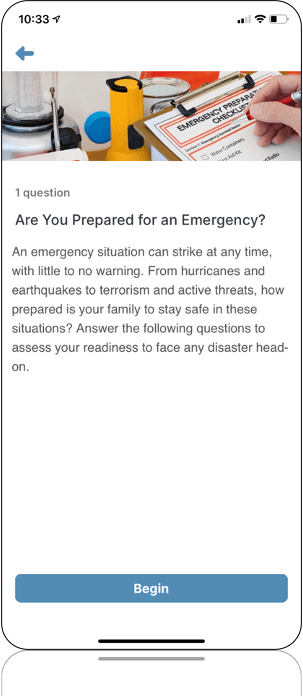
Your new scored assessment has been published and is accessible to app users. It will instantly appear in the ASSESSMENTS module of your app like so:
Viewing Quiz and Assessment Results
- In the main menu, double-click the quiz/assessment for which you’d like to view responses.
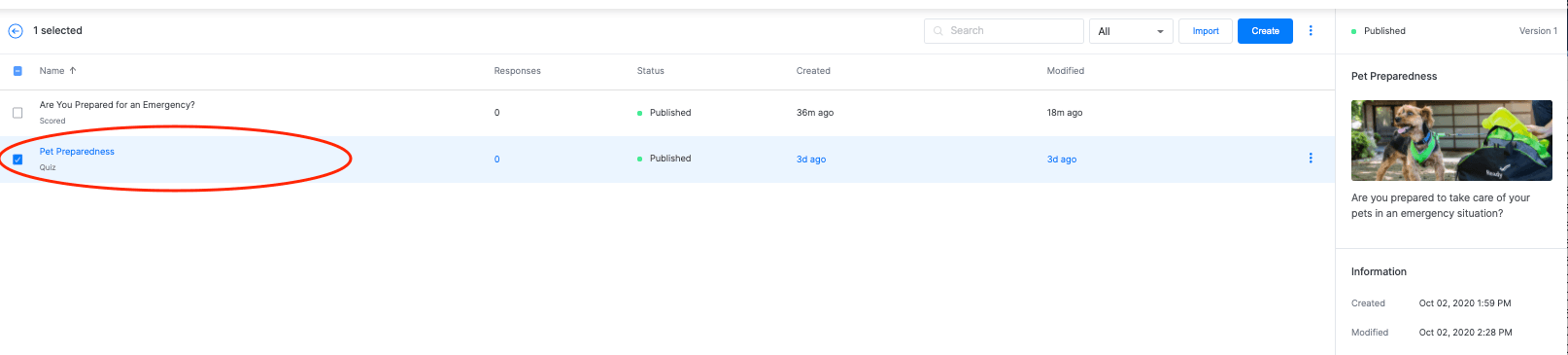
- Select how you would like to view responses from the tabs at the top of the quiz/assessment:
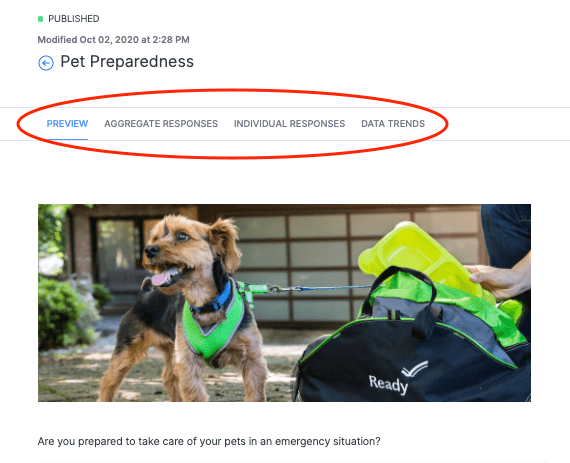
AGGREGATE: View the total number of responses and the average score.
INDIVIDUAL: View the score of a specific respondent.
DATA TRENDS: View the total data as either percent or number values in a bar graph.
Editing or Deleting an Assessment Category
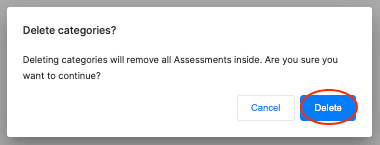
- In the main Assessments menu, select the category and click the THREE DOTS on the far right of the row.

- Select the action you’d like to perform from the drop-down list.
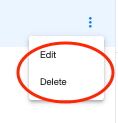
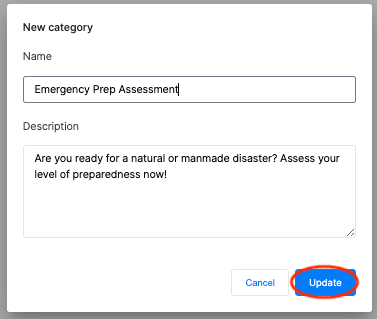
- Confirm your selection in the popup window.
To EDIT an assessment category:
To DELETE an assessment category:
Editing or Deleting an Assessment
Select the specific quiz or assessment from within the main category and click the THREE DOTS on the far right of the row.
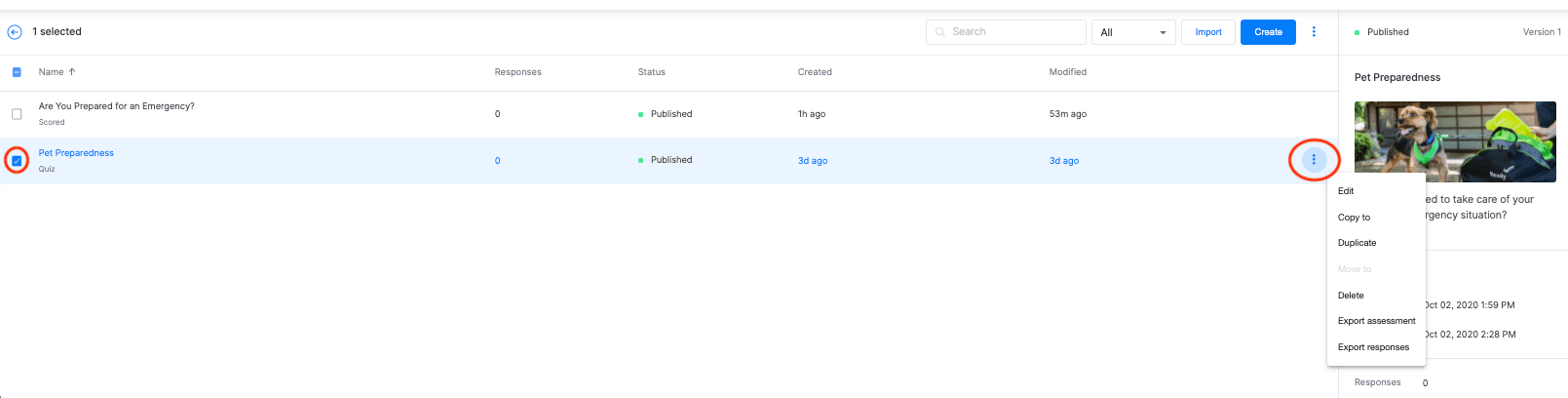
To EDIT an assessment:
- Select EDIT from the drop-down list.
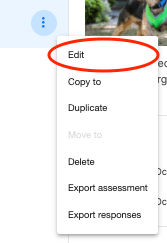
- Follow the steps in the Creating a Quiz/Test or Creating a Scored Assessment sections above, and click PUBLISH.
To DELETE an assessment:
- Select DELETE from the drop-down list.
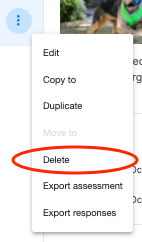
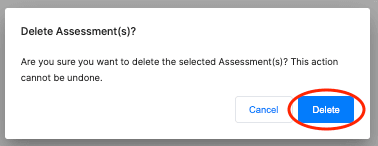
- Click DELETE in the popup window to confirm your selection.
Copying, Moving or Duplicating an Assessment
Select the specific quiz or assessment from within the main category and click the THREE DOTS on the far right of the row.
To COPY/MOVE an assessment:
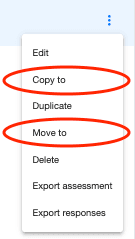
- Select COPY TO or MOVE TO from the drop-down list.
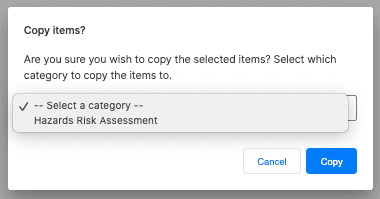
- From the drop-down list, choose the existing category to which you wish to copy the current quiz/assessment. Then, click COPY to confirm your selection.
To DUPLICATE an assessment:
- Select DUPLICATE from the drop-down list.
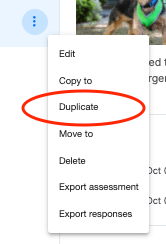
- Click DUPLICATE in the popup window to confirm your selection.
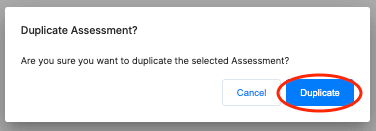
The duplicated assessment will now appear in the category’s main menu.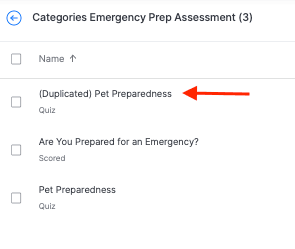
Exporting an Assessment or Responses
Select the specific assessment and click the THREE DOTS on the far right of the row.
To EXPORT an assessment:
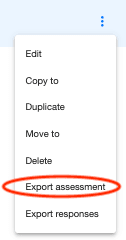
Select EXPORT ASSESSMENT from the drop-down list, and click EXPORT in the popup window. Your assessment will automatically be downloaded as a .qassessment file that can be stored and re-imported later.
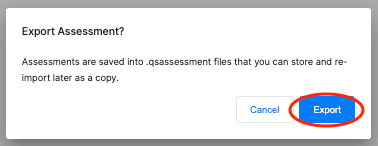
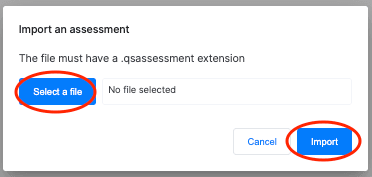
Note: To import an assessment, when within a category, click IMPORT on the top-right corner. Then, in the popup window, click SELECT A FILE to upload your .qassessment doc, and click IMPORT to confirm your selection.

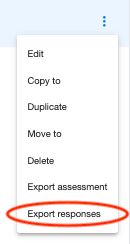
To EXPORT assessment responses:
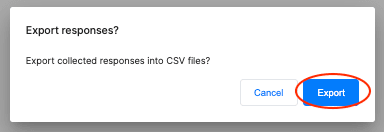
Select EXPORT RESPONSES from the drop-down list, and click EXPORT in the popup window. Your assessment will automatically be downloaded as an Excel (.CSV) file.