eGuide Library / Bundles
The eGuide Library module houses your personal collection of eGuides. App administrators can build the eGuide Library by choosing from QuickSeries titles or creating their own custom content, and they can control which eGuides are visible to app users at any time.
eGuides are:
- Updated on all devices when published.
- Downloaded for offline viewing.
Viewing Your eGuide Collection
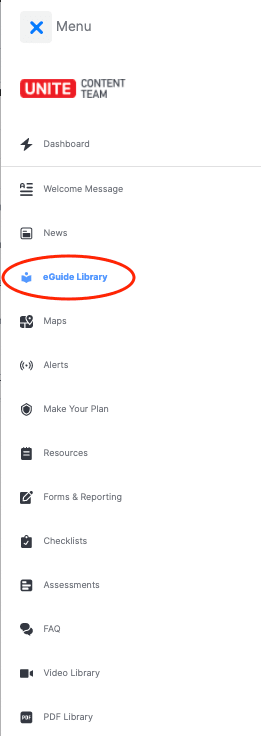
1. Select EGUIDE LIBRARY from the menu on the left.
2. Your available eGuides will appear in the eGUIDES tab within the main eGuide Library menu.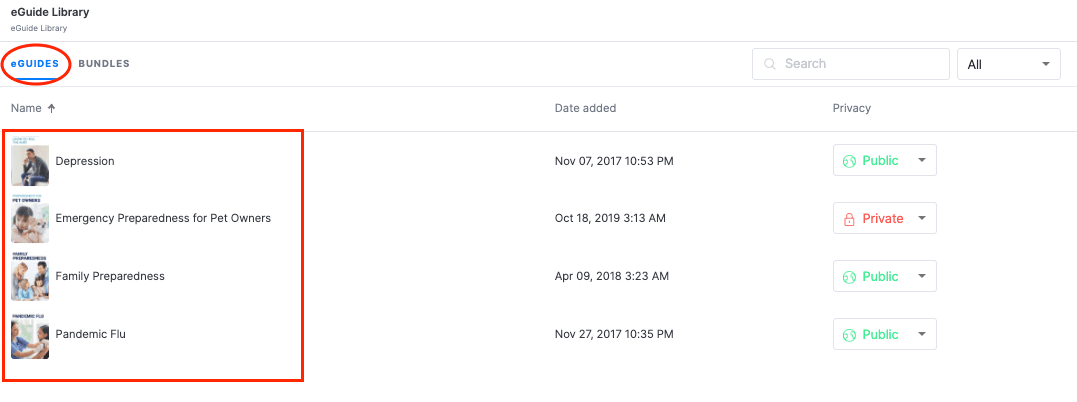
3. The eGuides from your list that are set to PUBLIC (see the Adjusting eGuide Privacy Settings section below) will also appear in the eGuide Library module of the user’s app, where they can be downloaded for offline reading.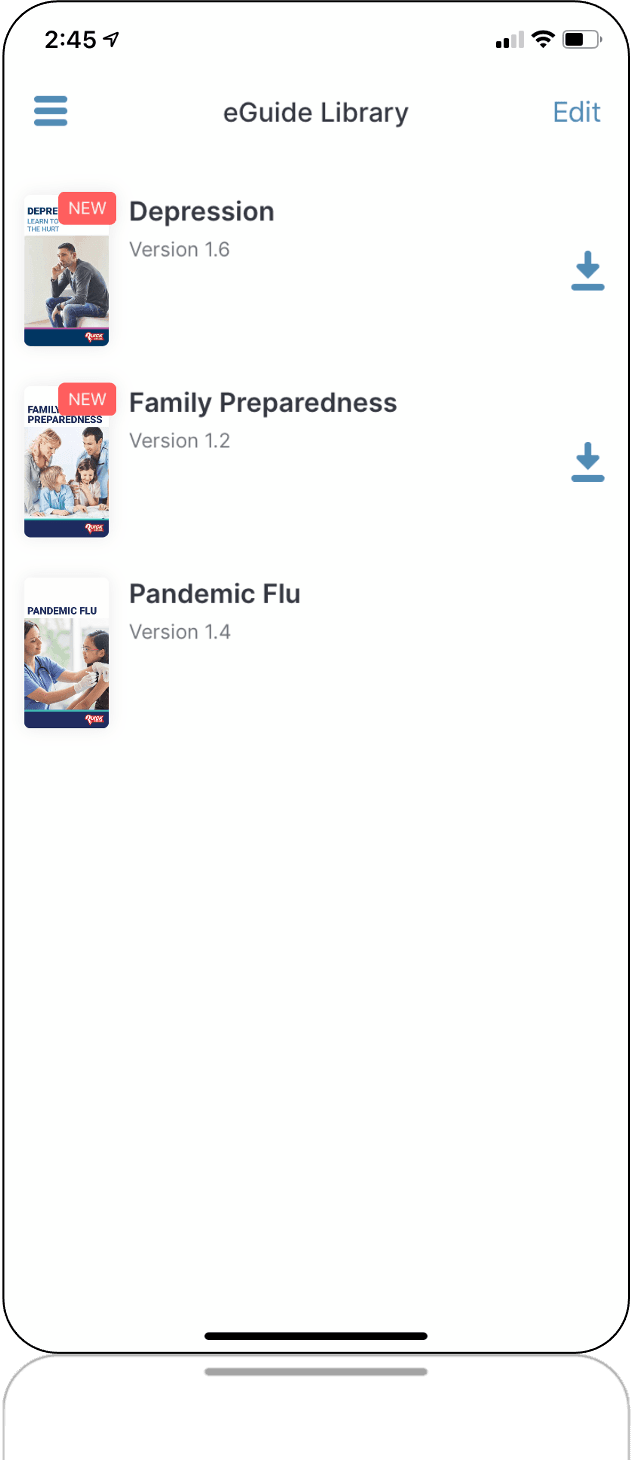
Adjusting eGuide Privacy Settings
Privacy settings give administrators control over which eGuides can be viewed by specific app users at a given time. An eGuide can be set to either PRIVATE or PUBLIC (see the Creating a Bundle section below).
- PRIVATE: The eGuide is hidden from the library. Only select app users may view it with the appropriate bundle code.
- PUBLIC: The eGuide is visible to all app users and is removed from any bundle.
- Select the eGuide you want to include in the bundle and click the button in the PRIVACY column.
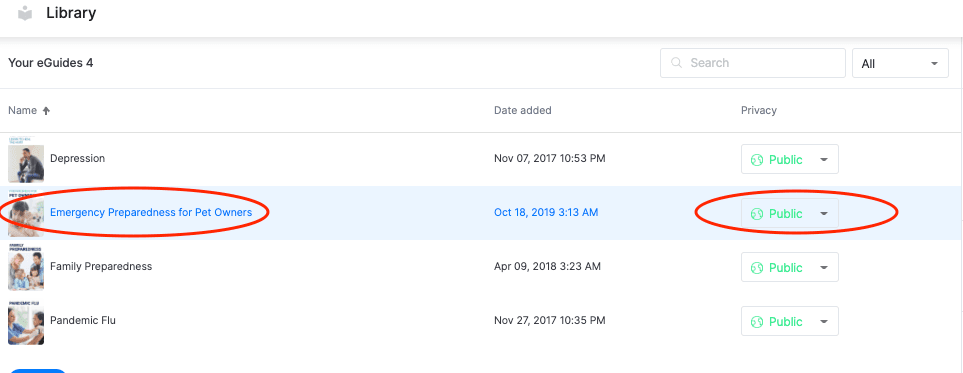
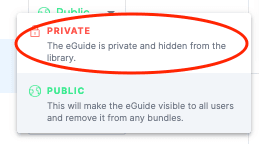
- Select PRIVATE from the list. The eGuide will automatically be set to PRIVATE and be hidden from app users.
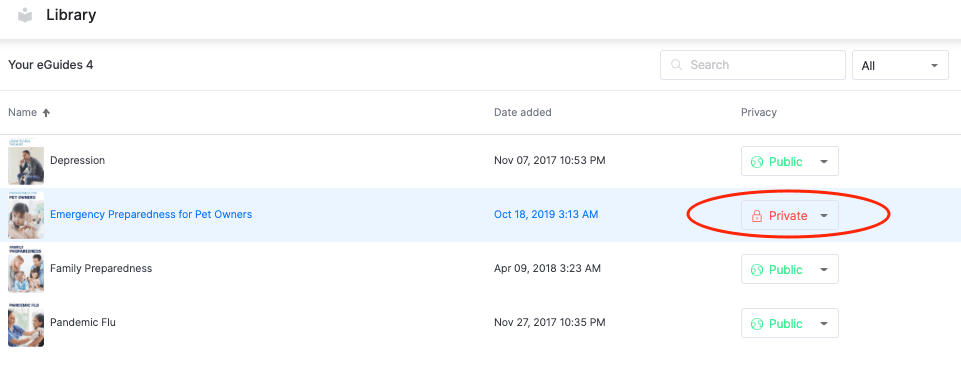
- Follow STEPS 1-2 above to set the eGuide back to PUBLIC at any time.
Creating a Bundle
Bundles allow app administrators to deliver selected eGuides to specific app users.
- Select the eGuide you want to include in the bundle and ensure it is set to PRIVATE in the PRIVACY column (see the Adjusting eGuide Privacy Settings section above).
Note: Perform STEP 1 for each eGuide you wish to include in the same bundle.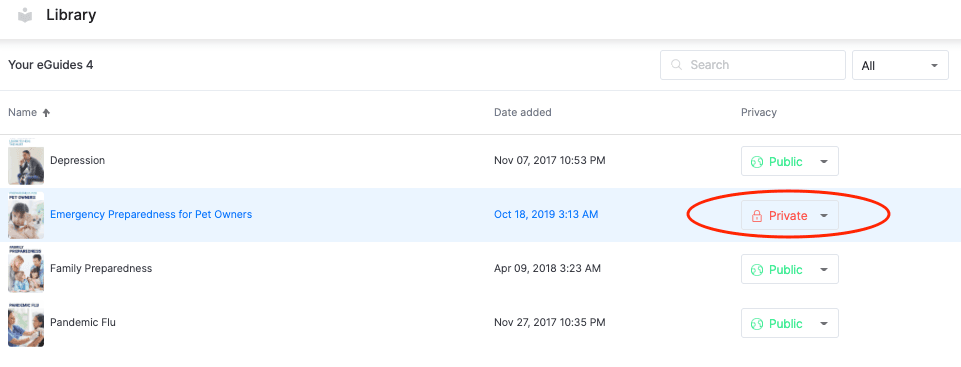
- Select the BUNDLES tab within the main eGuide Library menu.

- Click the CREATE button in the top-right corner.

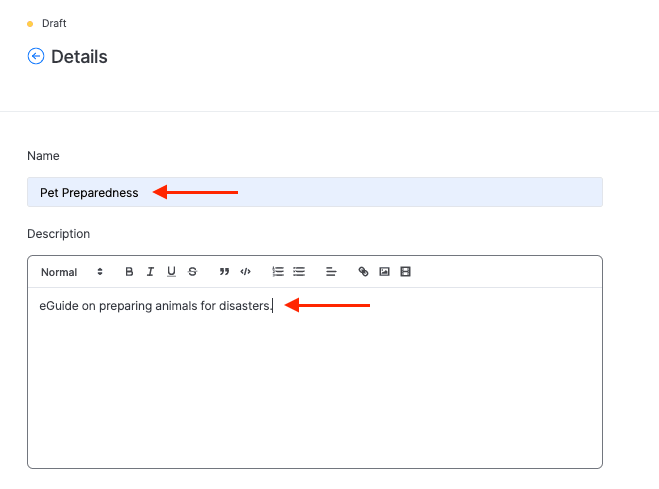
- On the Details page, add the bundle name and description.
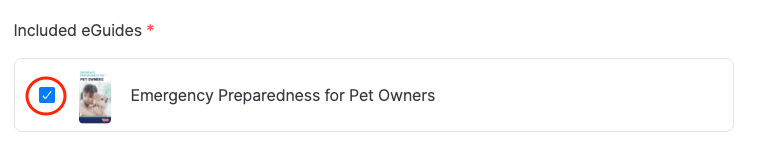
- Select the specific eGuide(s) you want added to this bundle. Note: Only eGuides set to PRIVATE will appear on this list.
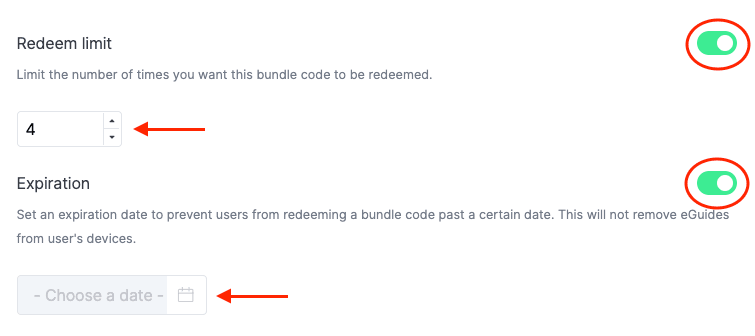
- If necessary, set a redeem limit and expiration date by sliding the right-hand button to ON for each option. Then, provide the necessary information.
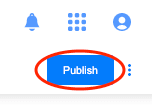
- Click PUBLISH in the top-right corner.
Your new bundle and the code to share with users will appear in the BUNDLES tab within the main eGuide Library menu like so: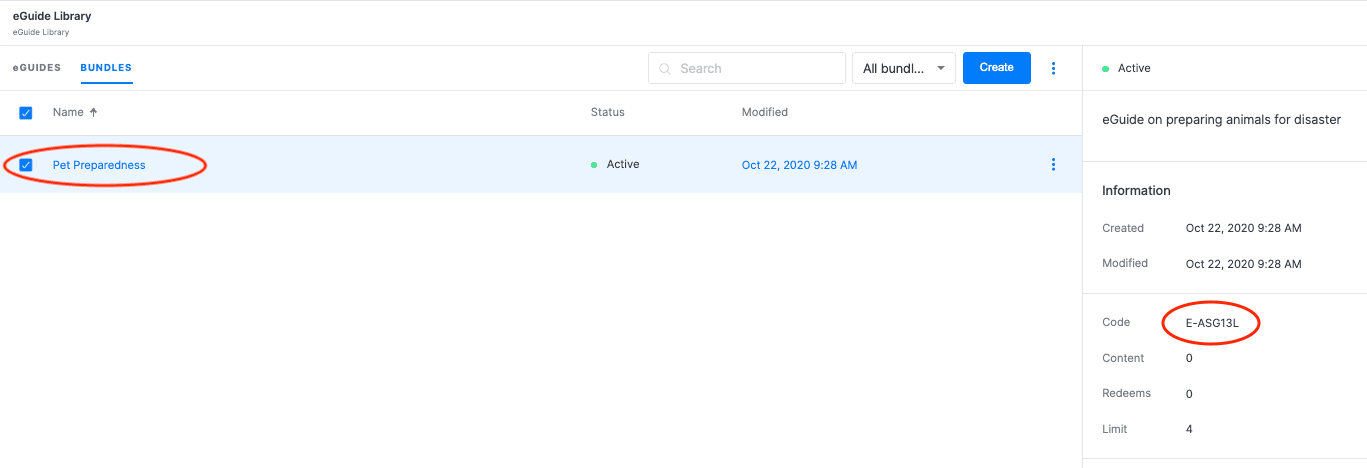
Note: Double-click the bundle to view its details (code, code redemption, expiration date, etc.)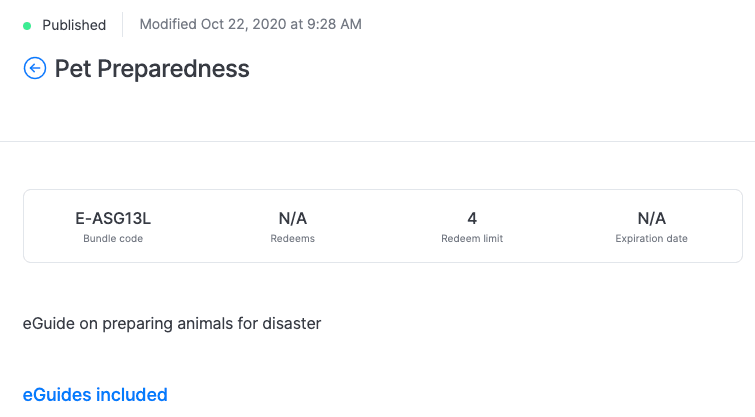
Editing or Deleting a Bundle
From the BUNDLES tab in the main eGuide Library menu, select the bundle you want to edit or delete and click on the THREE DOTS on the far right of the row.

To EDIT a bundle:
- Select EDIT from the drop-down list.
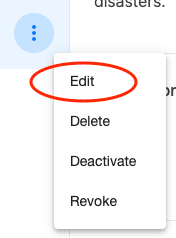
- Follow STEPS 4-7 in the Creating a Bundle section above.
To DELETE a bundle:
- Select DELETE from the drop-down list.
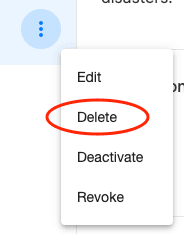
- Click DELETE in the pop-up window to confirm your selection.
Note:The bundle is deleted and access is subsequently revoked for any user who has activated the bundle code.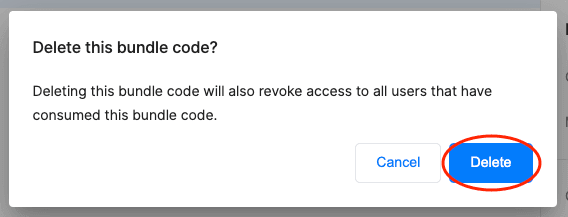
Deactivating/Activating a Bundle
From the BUNDLES tab in the main eGuide Library menu, select the bundle you want to edit or delete and click the THREE DOTS on the far right of the row.

To DEACTIVATE a bundle:
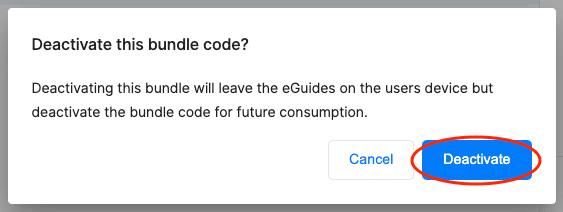
Note: When a bundle is deactivated, the eGuide remains on the user’s device, but future consumption of the code is disabled. Deactivated bundles may be activated at any time (see To Activate a Bundle below).
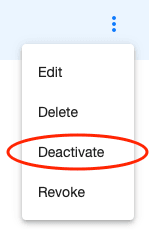
- Select DEACTIVATE from the drop-down list.
- Click DEACTIVATE in the pop-up window to confirm your selection.
To ACTIVATE a bundle:
Note: When a bundle is activated, the bundle becomes available for user consumption. Activated bundles may be deactivated at any time (see To Deactivate a Bundle above).
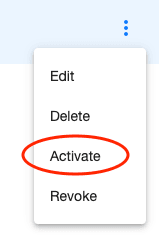
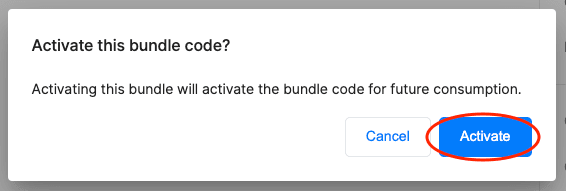
- Select ACTIVATE from the drop-down list.
- Click ACTIVATE in the pop-up window to confirm your selection.
Revoking/Reinstating a Bundle
To REVOKE a bundle:
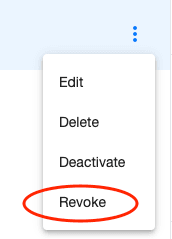
Note: Revoking a bundle removes the eGuide from the user’s device. Revoked bundles may be reinstated at any time (see To Reinstate a Bundle below).
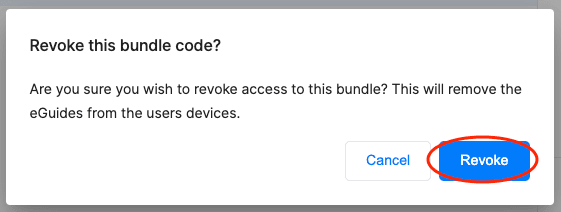
- Select REVOKE from the drop-down list.
- Click REVOKE in the pop-up window to confirm your selection.
To REINSTATE a bundle:
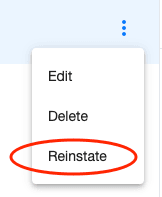
Note: When a bundle is reinstated, the revoked eGuides are placed back on the user’s device. Reinstated bundles may be revoked at any time (see To Revoke a Bundle above).
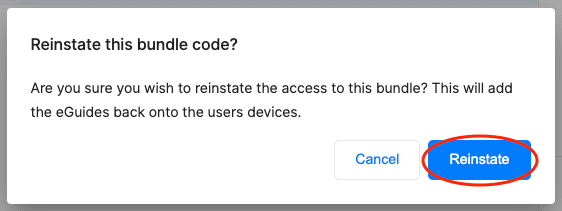
- Select REINSTATE from the drop-down list.
- Click REINSTATE in the pop-up window to confirm your selection.