Transferring Your App: How to Initiate the Transfer
To initiate the transfer of your app from our developer accounts to yours, we need you to provide the following information.
Apple: Team agent’s Apple ID & Team ID
Google: Developer ID and Account Transaction ID
Once we receive this information, we will initiate the transfer of your app. The transfer may take up to two business days to complete.
Where to Find This Information
Apple
Find Your Team Agent ID – The Team Agent is the person who created the developer account.
- Log in to: https://developer.apple.com
- Click on People from the left side menu.
- The Team Agent should be at the top of the list of users.
Find Your Team ID – The Team ID is a combination of uppercase letters and numbers.
- Log in to: https://developer.apple.com
- Click on Membership from the left side menu.
- The Team ID is listed under Membership Information.
Find Your Developer ID
- Log in to: https://play.google.com/apps/publish
- Open the left side menu and click on Settings
- Under Developer Account, click on Account Details to see the Developer Account ID
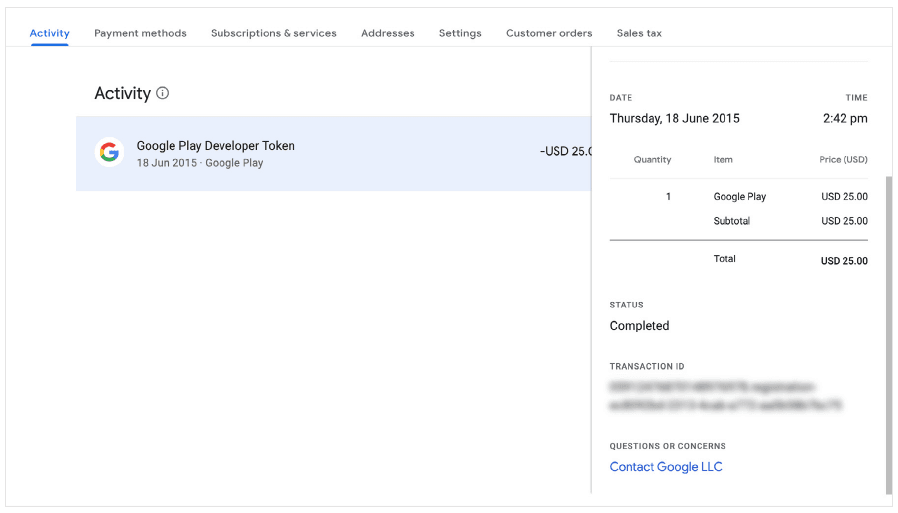
Find Your Account Transaction ID.
This information is on the receipt that was emailed to you when you registered for the account. Search the account owner’s email inbox for “developer registration fee.”
Transaction IDs are typically in one of the following formats:
- PDS. 1234-5678-9012-3456
- 01234567890123456789.token.0123456789012345
- 0.G.123456789012345
- registration-1234ab56-7c89-12d3-
- 4567-8e91234567f8
If you can’t find it in your email, check your account transactions:
- Log in to: https://payments.google.com
- Select Activity.
- Find and select the transaction for your developer account registration. Tip: Search your transactions for “Google Play Developer.”
- Your transaction ID is listed near the bottom of the transaction details.