News
The News module allows you to deliver informative articles about any topic of interest through your app. You can write and publish your own articles or provide a selection of RSS feeds to existing articles on the web.
Creating a News Article
- Select NEWS from the menu on the left.
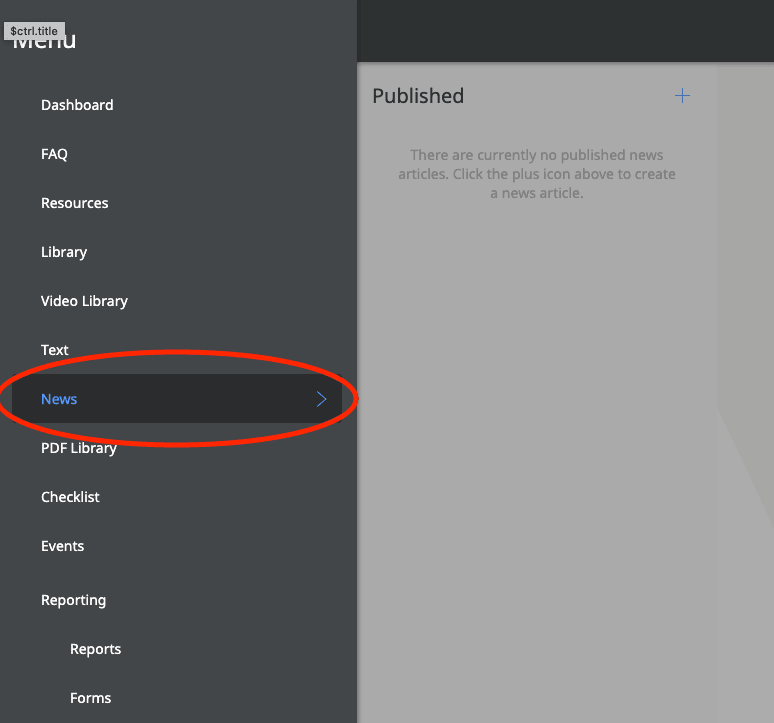
- Click on the PLUS (+) sign at the top right of the second column.
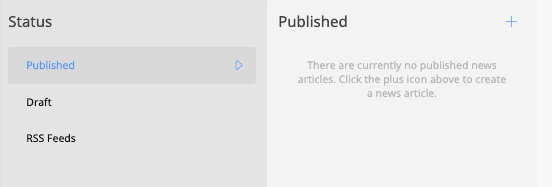
This will open the window in which you can enter the contents of your news article: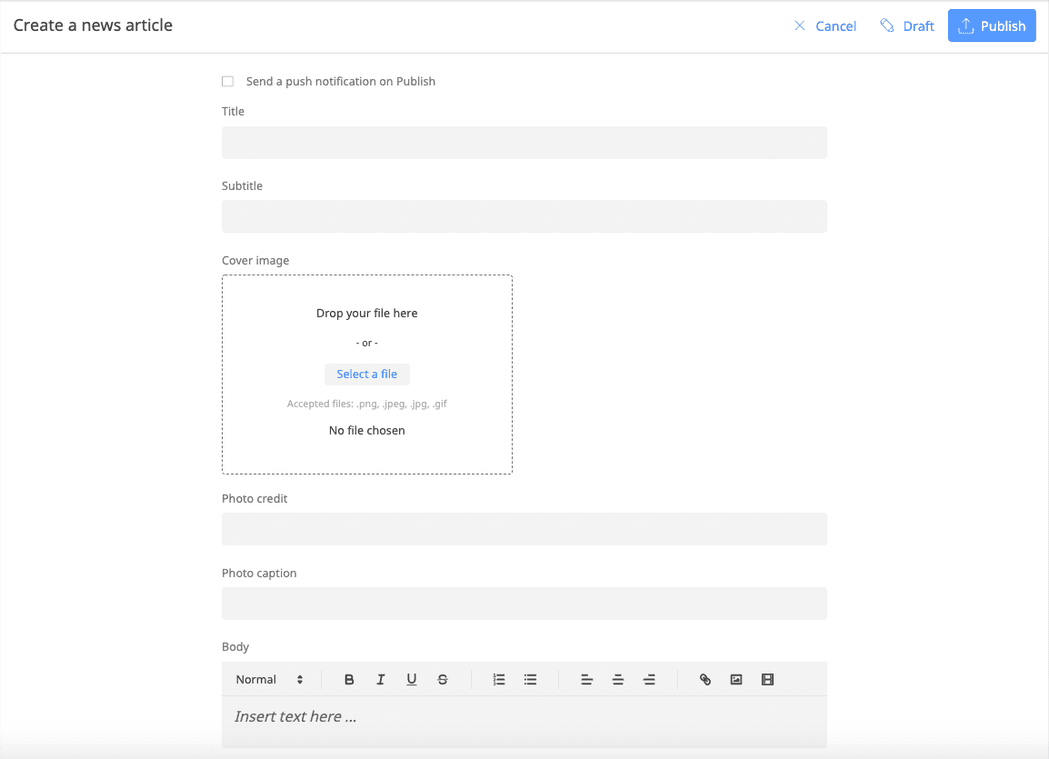
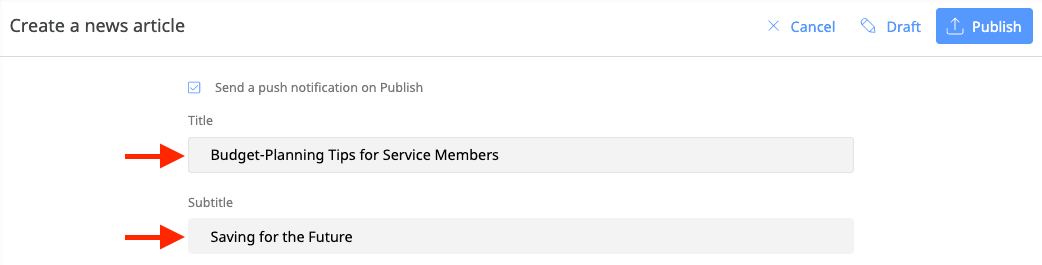
- Enter your title and an optional subtitle in the first two boxes.
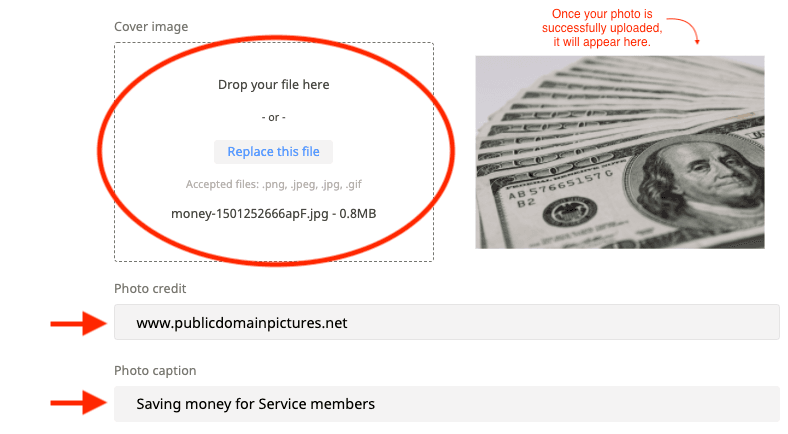
- Insert your image by dragging and dropping your image file into the COVER IMAGE box. Accepted files are PNG, JPG or GIF. A high-resolution image that is at least 700 px wide with a 4:3 ratio is recommended. You can also add a photo credit and caption to your image in the appropriate boxes. This text will display underneath the image on the app.
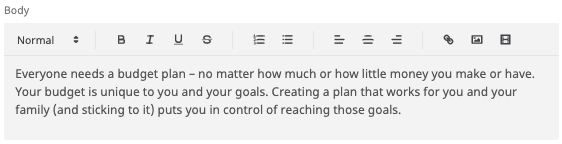
- Click in the text box in the BODY section to insert the contents of your article. Write your article directly in the text box or cut and paste in your content. Use the toolbar on top of the text box to change the font style, add bulleted or numbered lists, insert links, photos or videos, and more.
- If you HAVE completed your news article:
- At the top of the page, click on the box next to Send a push notification on Publish if you would like to inform app users that a new article is available.

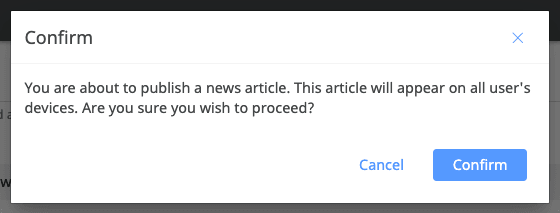
- Click PUBLISH at the top right of the page.

- The following window will appear. Click on CONFIRM to publish or CANCEL to return to your draft.
- At the top of the page, click on the box next to Send a push notification on Publish if you would like to inform app users that a new article is available.
And you’re done!
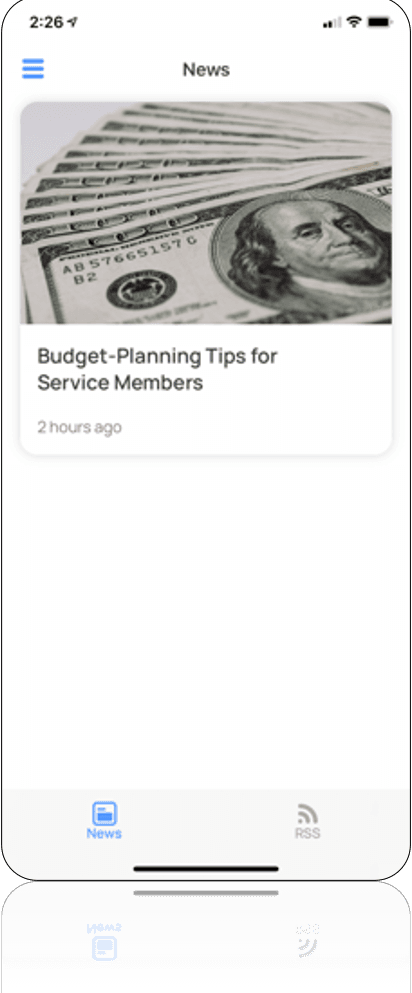
Your article has been published and is accessible by app users. It will instantly appear in the NEWS module of your app like so:
If you have NOT completed your news article:
Click DRAFT to save your article so you can work on it later. See instructions below for resuming work on a saved draft.

Viewing Published Articles and Working on Saved Drafts
To VIEW published articles:
- Select PUBLISHED from the STATUS menu on the left. Articles will appear in order of most recently published.
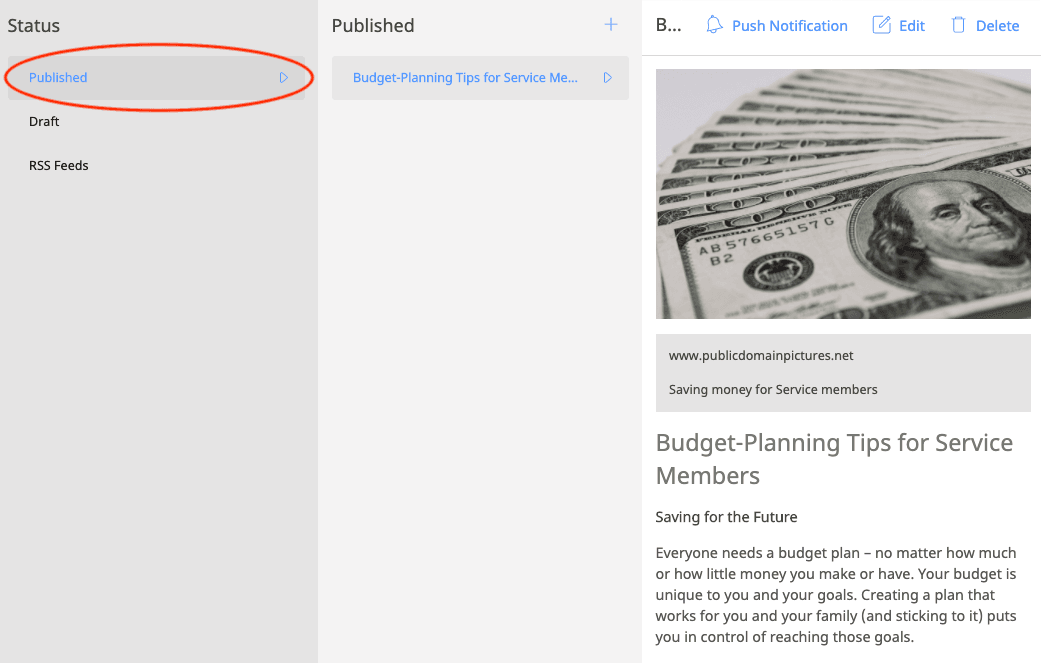
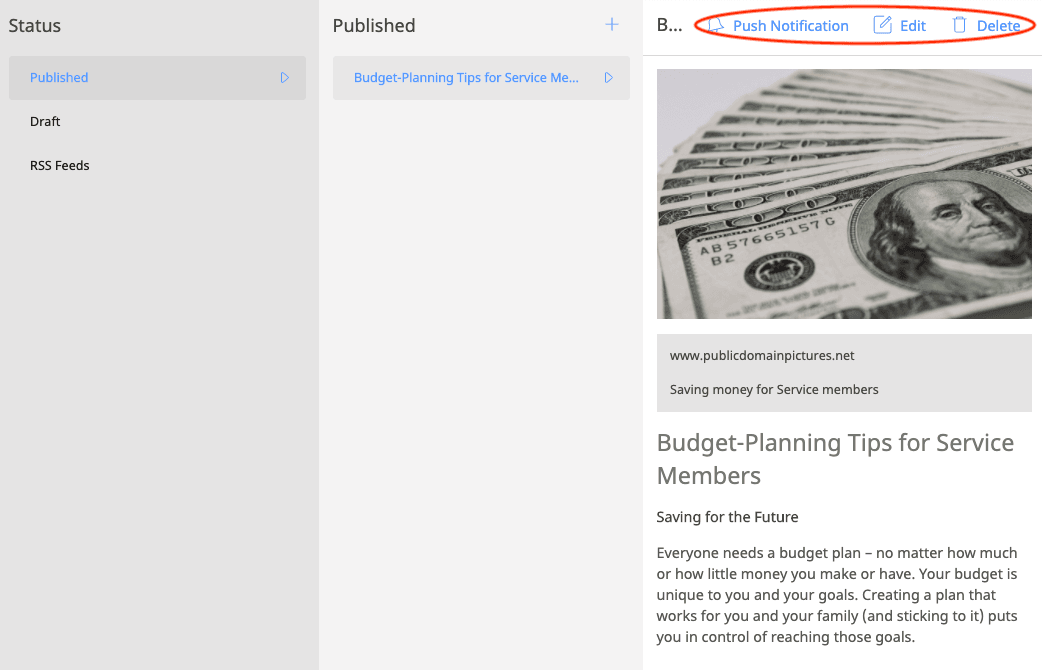
- Send a push notification, edit or delete your article by clicking the appropriate button in the top-right corner.
To work on a SAVED DRAFT:
- Click on DRAFT in the left-hand STATUS column, and then select the title of your article in the DRAFT column.
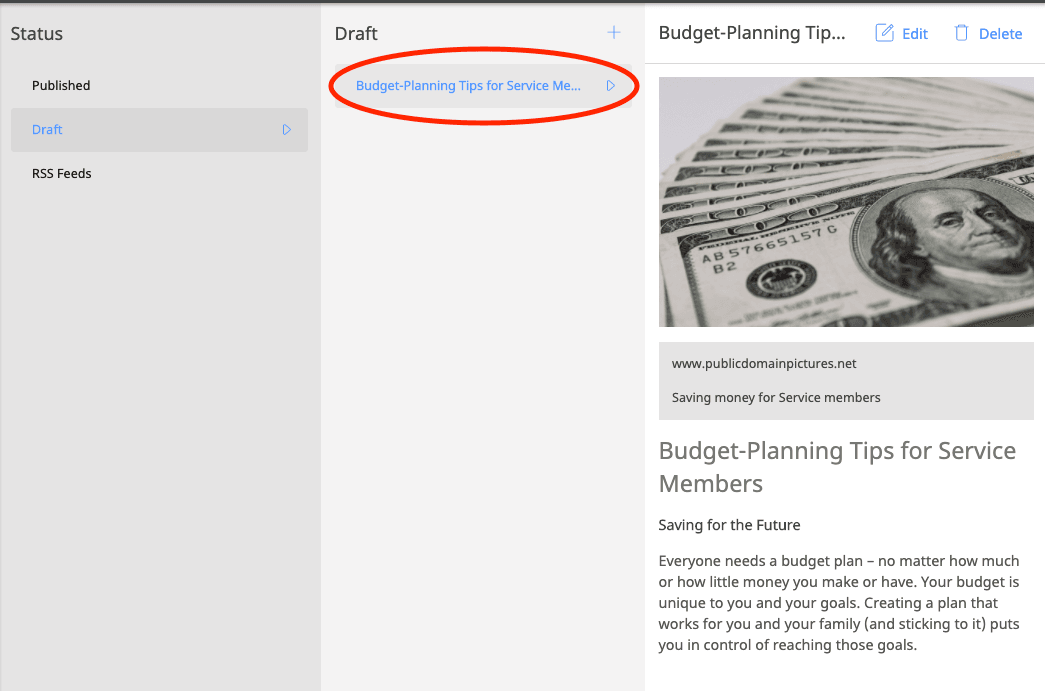
- Click EDIT to begin working on your saved draft.
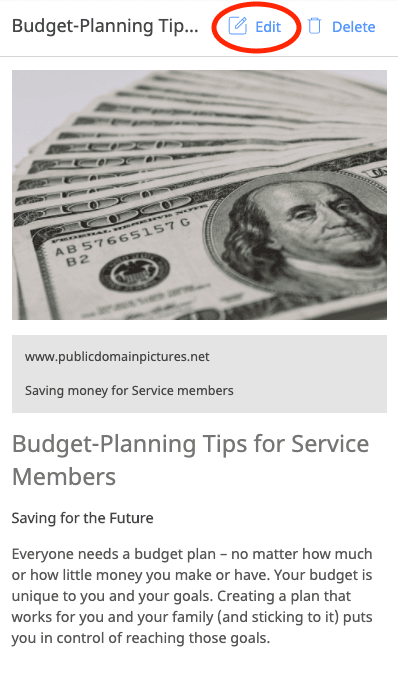
- To publish your article, follow STEPS 6A-6C above.
Adding an RSS feed
An RSS feed gives users access to updated website content in a single place. You can easily provide app users with relevant news and current information on specific topics of interest through this module’s RSS feed.
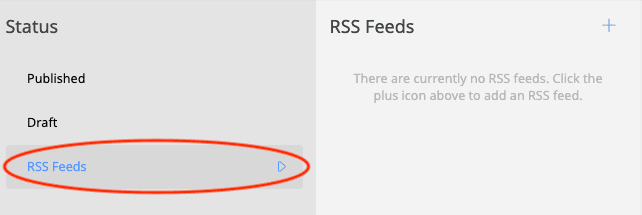
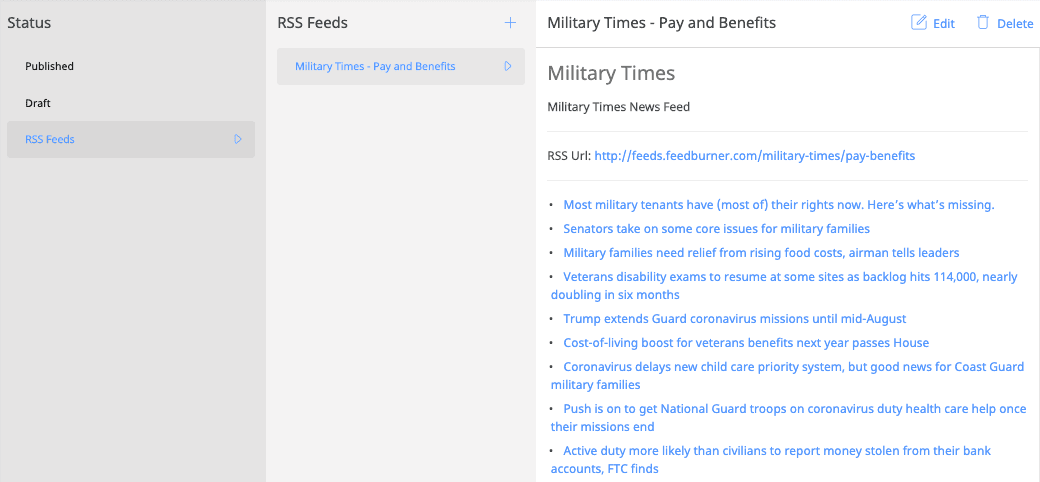
- Select RSSFEEDS from the STATUS menu on the left.
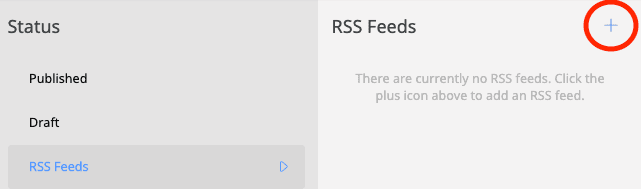
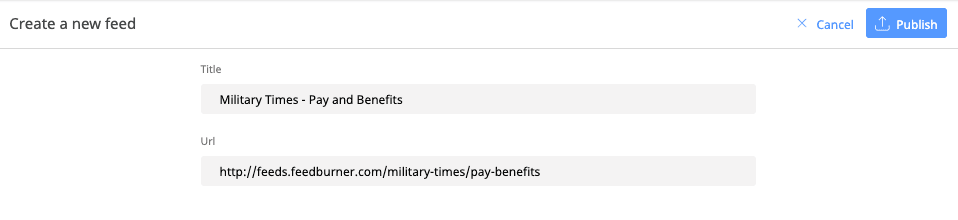
- Click on the PLUS (+) sign at the top right of the RSS FEEDS column.
- Enter the title of the feed and its specific RSS URL link in the appropriate boxes (please note only RSS URLs will work here).
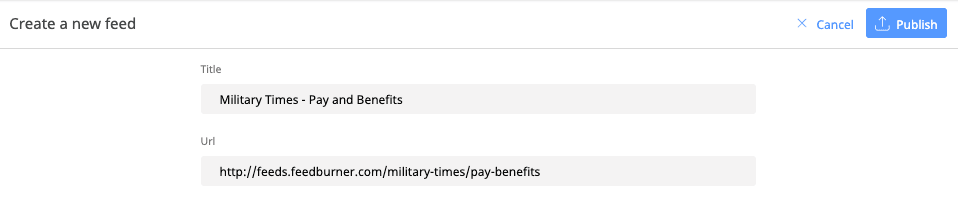
- Click on PUBLISH to save the new RSS feed.
- Once published, you can edit or delete the RSS feed at any time using the buttons in the top-right corner.
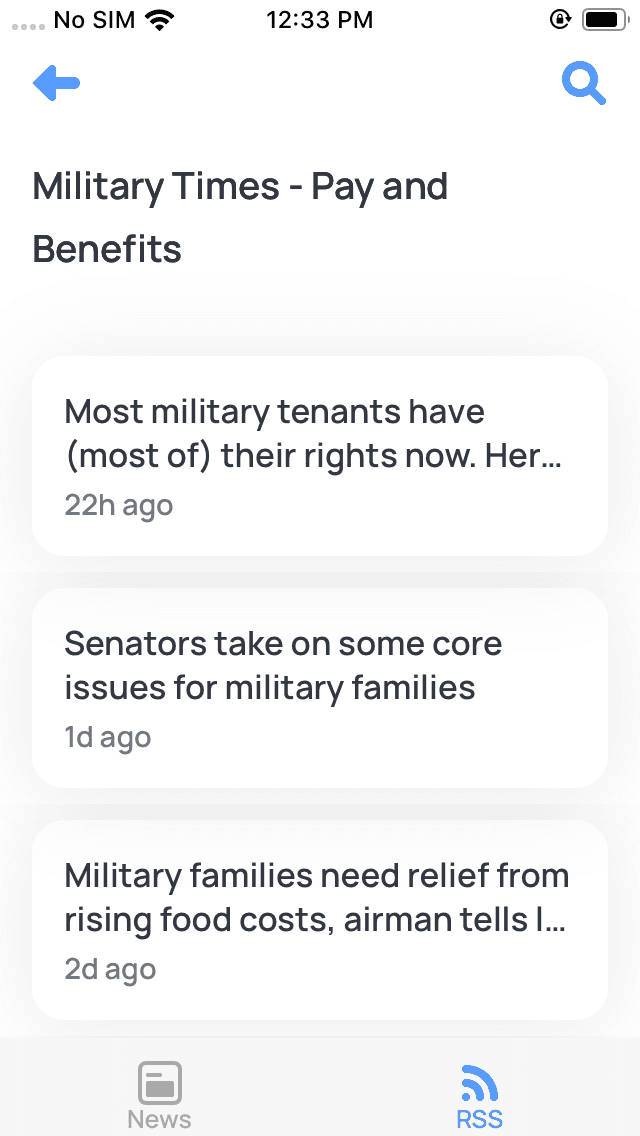
- The new RSS feed will appear in the NEWS module on your device. Select the RSS icon to view a list of the RSS feeds available.
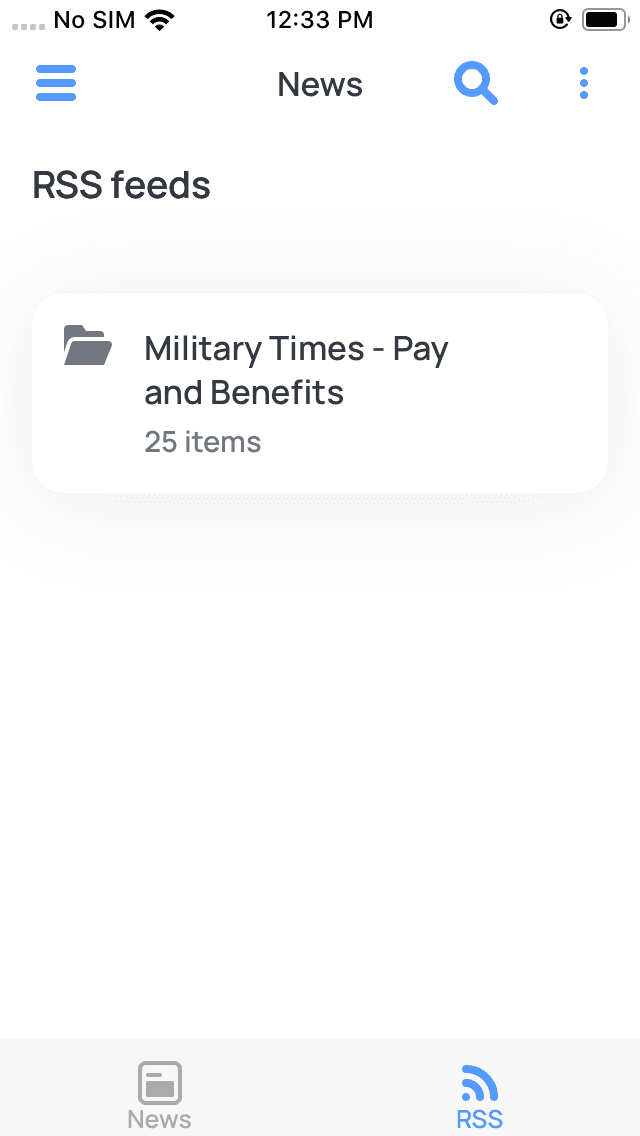
- Select a RSS feed to view a list of recently posted articles.