
PDF Library
The PDF Library module houses valuable PDFs on any relevant topic. Organize PDFs by category for quick and easy reference by app users. Users can also download PDFs onto their devices for offline viewing.
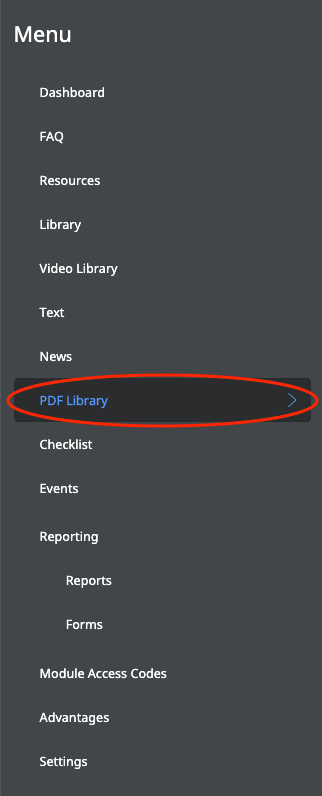
- Select PDF LIBRARY from the menu on the left.
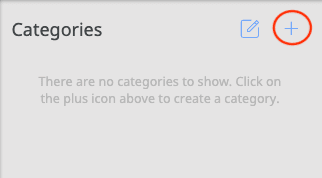
- Click on the PLUS (+) sign in the top-right corner of the first column.
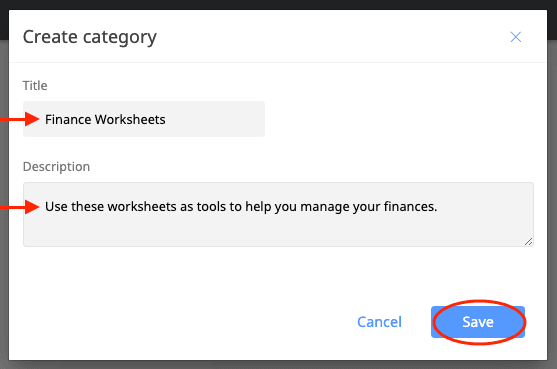
- In the CREATE CATEGORY window, complete the information in the TITLE and DESCRIPTION boxes, then press SAVE.
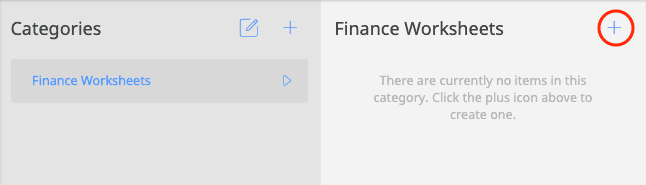
- Click on the PLUS (+) sign in the second column to add a new PDF to this category.
- In the CREATE A NEW PDF box, upload your PDF by dragging and dropping the file into the box at the top of the screen, or by selecting CHOOSE FILE.
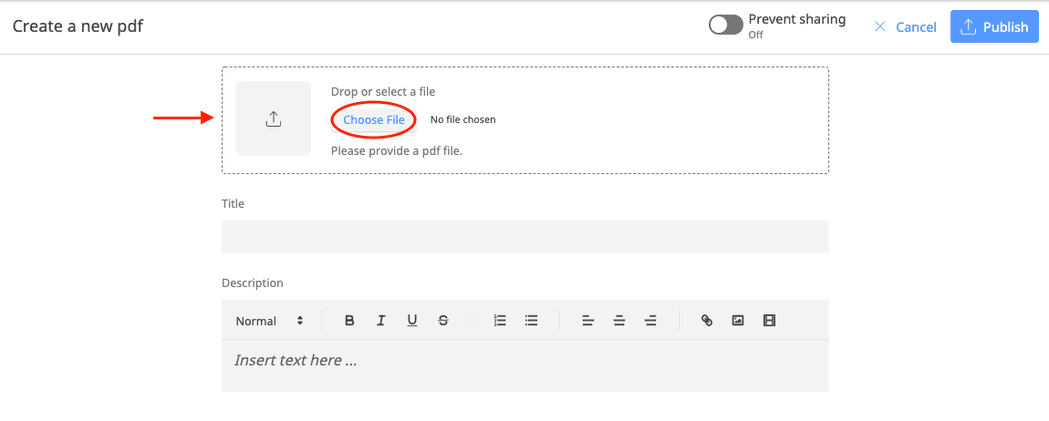
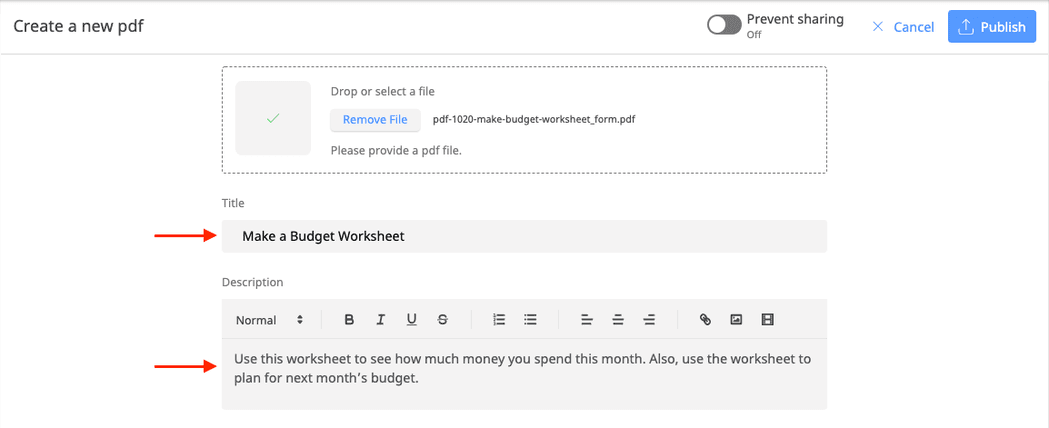
- In the TITLE and DESCRIPTION boxes, insert appropriate information. Use the tools on the top of the DESCRIPTION box to change the font style, add bulleted or numbered lists, insert links, photos or videos, and more.
- Make sure the PREVENT SHARING button is set to OFF if you would like this PDF to be accessible to all app users.
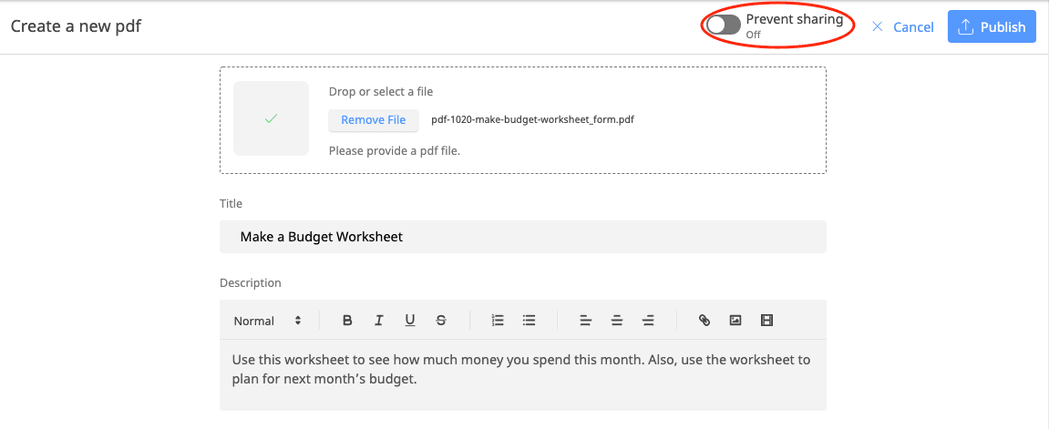
Note: You can also prevent or allow sharing of the PDF at any time from the main PDF Library menu. See the Editing/Deleting a Category section below for instructions. - Click PUBLISH in the top-right corner to make this PDF live within the app.
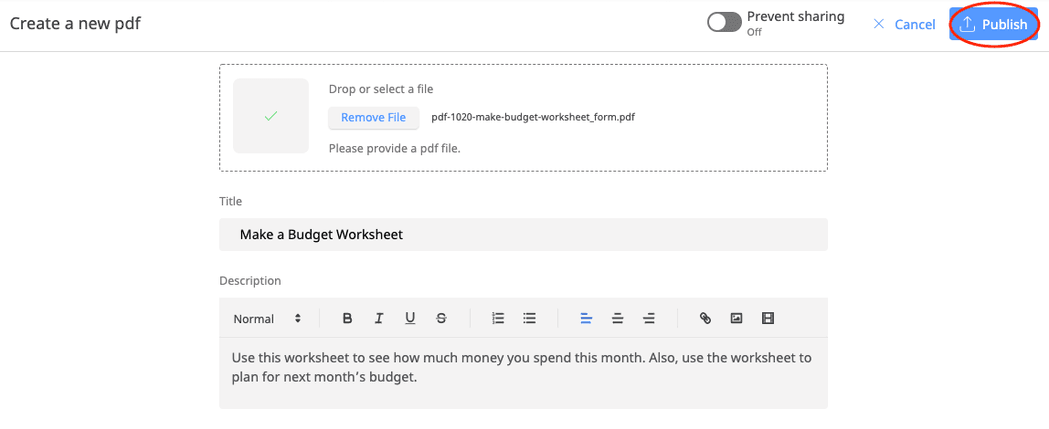
And you’re done!
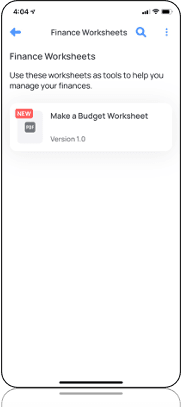
Your PDF has been published and is accessible by app users. It will instantly appear in the PDF LIBRARY module of your app like so:
Editing and Deleting a Category
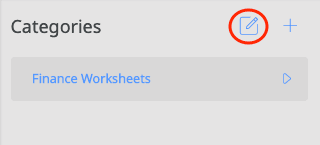
Select the EDIT icon in the top-right corner of the first column.
To EDIT a category name:
- Select the EDIT icon on the right of the category name.
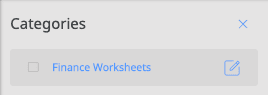
- Follow STEP 3 above to edit the category title and description.
To DELETE a category:
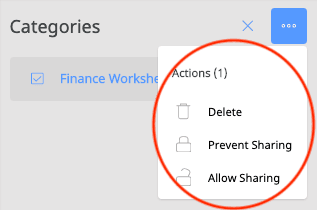
- Check the box next to the category name, then select the ELLIPSIS (…) in the top-right corner of the first column.
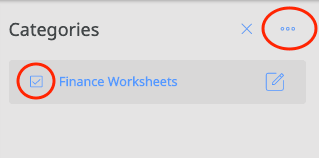
- Select the action you want to perform from the drop-down list: DELETE, PREVENT/ALLOW SHARING.
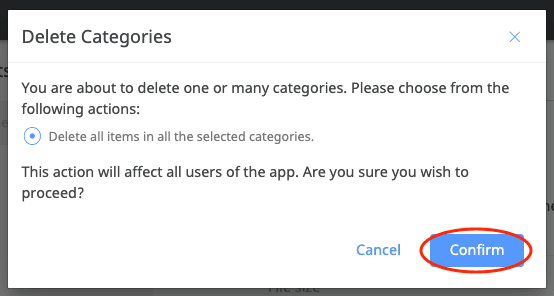
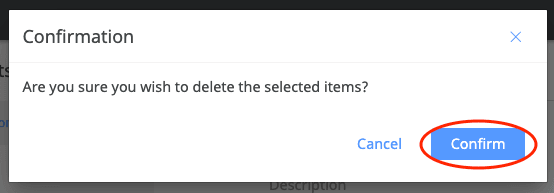
- Select CONFIRM in the pop-up window to save your selection.
Managing a Specific PDF Category
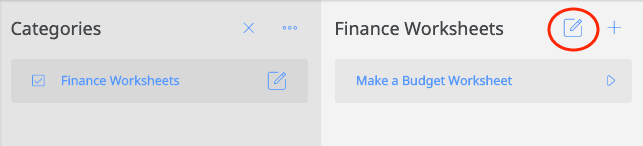
- Select the EDIT icon in the top-right corner of the second column.
- Check the box next to the PDF name, then select the EDIT icon on the right of the PDF name.
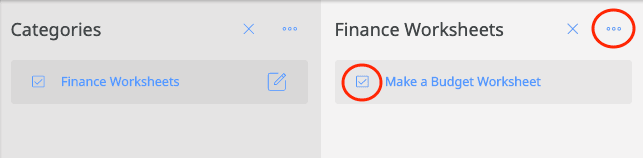
- Select the action you want to perform from the drop-down list: COPY, MOVE, DELETE, PREVENT/ALLOW SHARING.
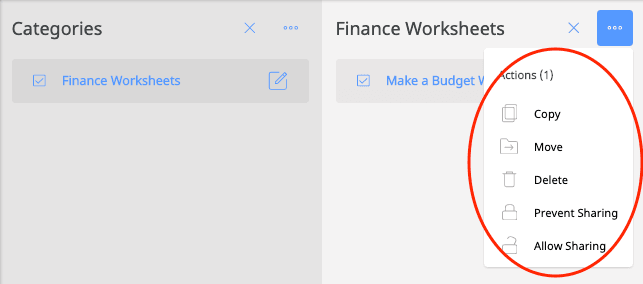
To DELETE or PREVENT/ALLOW SHARING of a PDF:
Save your choice by selecting CONFIRM in the pop-up window.
To COPY or MOVE a PDF into a different category:
Select the preexisting category into which you want the PDF to be copied from the drop-down list. Then, press SAVE.
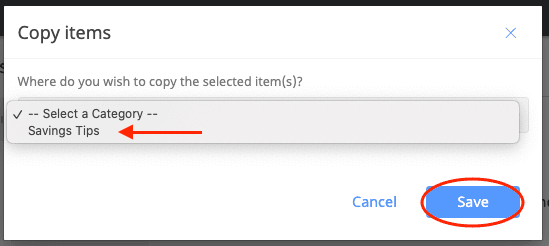
Note: If you COPY a PDF, a second version of the PDF will be added to a different category. The PDF will not be deleted from the original category. If you MOVE a PDF, it will be relocated from the original category into the new one.
Managing PDF Files
Select the DOWNLOAD, EDIT or DELETE button in the top-right corner of the third column to perform any of these actions.
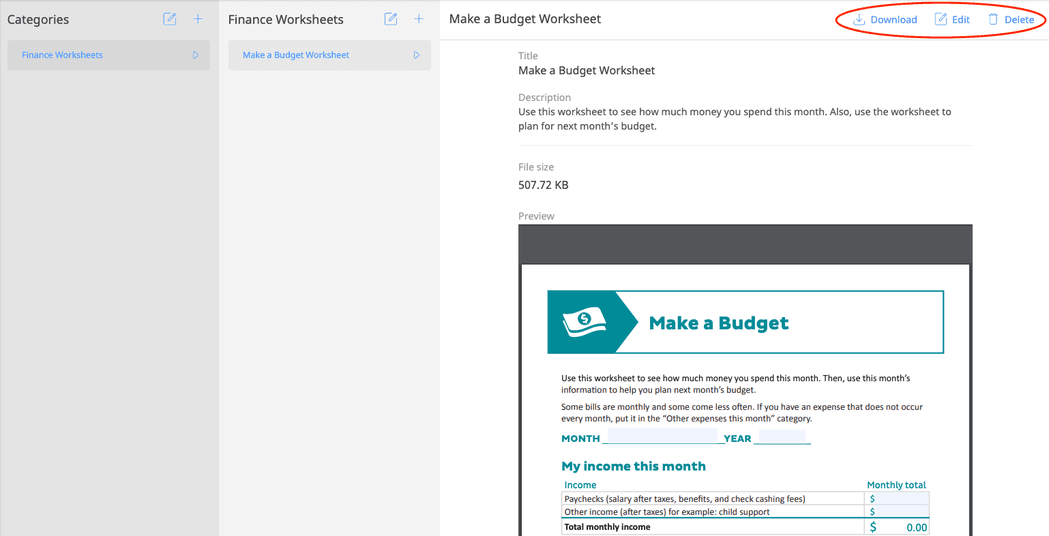
Note: Selecting the DOWNLOAD button will automatically download the PDF onto the user’s device for offline reading.